1. Cleaning the Print Heads
Dirt on the print heads can affect print quality. Clean them before starting operations, when resuming operations, and after operations.
Print head cleaning discharges a small amount of ink from the print head. Wipe off unwanted ink. Cleaning can remove unwanted ink and clear ink clogging.
Negative pressure is applied to the print heads to hold ink. Print head cleaning also allows users to determine whether the negative pressure value needs to be adjusted. For details of negative pressure adjustment, see Adjusting Negative Pressure of the Print Heads.
Be sure to put on protective gloves and UV protective eyewear before performing this work.
Ink may drop or scatter.
- Use new non-woven fabric when cleaning the bottom surface of the print-head carriage. When cleaning the surface, pay careful attention not to rub the nozzle surfaces.
- Use cleaning sticks when cleaning the print head nozzle surfaces. Cotton swabs or other lint-producing items may damage the print heads.
- Be sure to clean the print-head carriage on a daily basis to prevent its bottom surface from becoming dirty due to adhesion of ink and dust. If the bottom surface is dirty, the nozzles may be rubbed with foreign materials and coagulated ink during cleaning.
Check that the print-head carriage has returned to the maintenance station. If the machine detects an intrusion into the movable range of the print-head carriage while the carriage is not in the maintenance station, the safety protection function is activated to stop the machine.Safety Protection Function
-
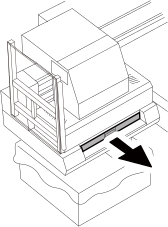
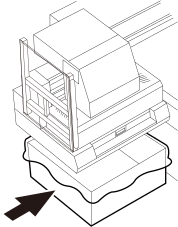
Place the container under the maintenance station.
-
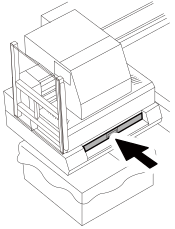
Slowly insert the ink receiver all the way.
-
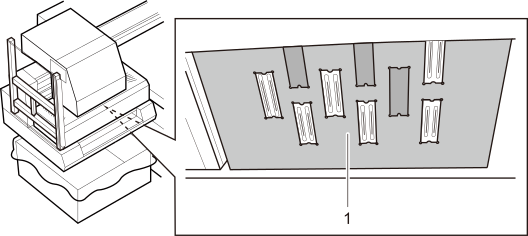
Clean the entire bottom surface (1) of the print-head carriage using new non-woven fabric.
IMPORTANT
- Use dry non-woven fabric without using cleaning liquids.
- Do not touch the nozzle surfaces when cleaning the print heads and their surrounding areas.
- Clean the entire bottom surface and both side surfaces of the print-head carriage by removing adhering ink.
-
Press the ink flush button on the left side of the print-head carriage to discharge ink from the print head.
- Press and hold the [K] button for 10 seconds.
- Press and hold the [C] button for 10 seconds.
IMPORTANTDo not hold down the buttons for more than 10 seconds.
The ink storage, which is located on the upper side of the print head, runs out of ink. This allows air to enter the ink tube, causing ink discharge failure or decreased printing quality.
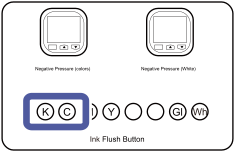
-
Determine if the print head negative pressure value is set appropriately by checking the print head nozzle surfaces.
The negative pressure value is appropriate if discharged ink droplets are kept on the nozzle surfaces.
If the negative pressure value of the print head nozzle is too high, ink droplets on the nozzle surfaces are sucked into the nozzles. If this is the case, lower the negative pressure value of the print head nozzle.
Lowering the Negative Pressure Value of the Print Heads
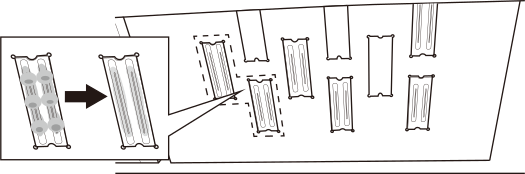
-
Clean the K and C print head nozzle surfaces using new cleaning sticks.
IMPORTANT
- Use dry non-woven fabric without using cleaning liquids.
- Never rub the nozzle surfaces hard.
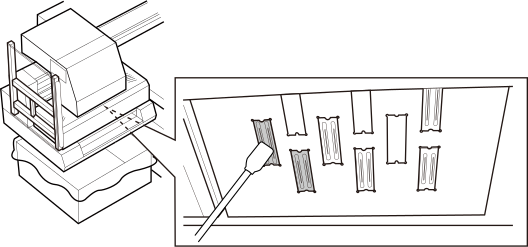
-
Determine if the print head negative pressure value is set appropriately by checking the print head nozzle surfaces.
If the nozzle surfaces maintain conditions immediately after cleaning, the negative pressure value is appropriate.
If the negative pressure value of the print head nozzle is too low, ink seeps from the nozzle surfaces. If this is the case, increase the negative pressure value of the print head nozzle.
Increasing the Negative Pressure Value of the Print Heads
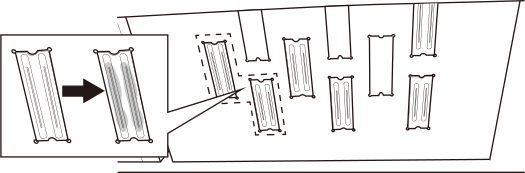
-
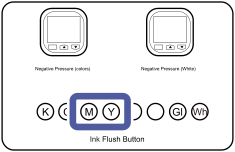
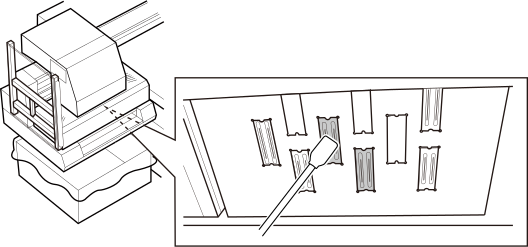
Clean the M and Y print heads.
Press the [M] and [Y] ink flush buttons, and clean the print heads following the same procedure as in Steps 5 to 7.IMPORTANT
Do not hold down the buttons for more than 10 seconds.
The ink storage, which is located on the upper side of the print head, runs out of ink. This allows air to enter the ink tube, causing ink discharge failure or decreased printing quality.
 IMPORTANT
- Use dry non-woven fabric without using cleaning liquids.
- Never rub the nozzle surfaces hard.
-
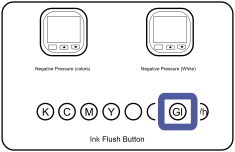
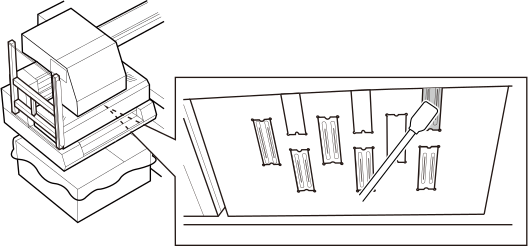
Clean the Gl print head.
Press the [Gl] ink flush button, and clean the print head following the same procedure as in Steps 5 to 7.IMPORTANT
Do not hold down the buttons for more than 10 seconds.
The ink storage, which is located on the upper side of the print head, runs out of ink. This allows air to enter the ink tube, causing ink discharge failure or decreased printing quality.
 IMPORTANT
- Use dry non-woven fabric without using cleaning liquids.
- Never rub the nozzle surfaces hard.
-
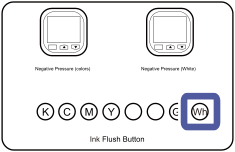
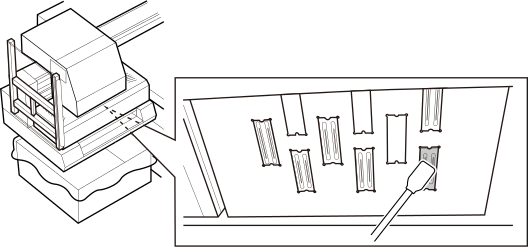
Clean the Wh print head.
Press the [Wh] ink flush button, and clean the print head following the same procedure as in Steps 5 to 7.IMPORTANT
Do not hold down the buttons for more than 10 seconds.
The ink storage, which is located on the upper side of the print head, runs out of ink. This allows air to enter the ink tube, causing ink discharge failure or decreased printing quality.
 IMPORTANT
- Use dry non-woven fabric without using cleaning liquids.
- Wipe off the Wh ink thoroughly because it easily adheres to the print head surface.
- Never rub the nozzle surfaces hard.
-
Slowly pull the ink receiver back toward you.