
Editing Images
This section introduces how to edit images being edited on the design window.
Procedure
- Select an image placed on the canvas.
-
Click Image Editing on the operation panel or double-click the image.
The operation panel will change to the Image Editing window.
-
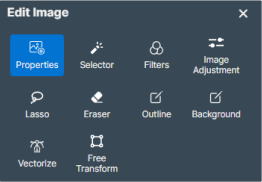
Editing images.
Menu Description 
Properties Used to change the image size or color, or to cut out the image. 
Selector Click any location in the image to automatically select the area of similar colors. The following operations can be performed for the selected area. - Select

 to expand or shrink the selected area.
 - Specify the fill or line color.
- Click Invert to mirror (reverse) the selected area.
- Deselect Select Image to edit the selected area as a path.MEMO Select Keep original selection after inverse, then click Invert to edit both the paths before and after mirroring.
- After editing the path, click Reuse Selection to return to the selected area.

Filters You can apply various visual effects to the entire image to change the impression it creates or produce a feeling of consistency in the design. Posterize Reduces the number of image colors, and applies an expression limiting gradation as in a poster. A smaller value of Level produces a larger change. Grayscale Converts the image from color to a black-and-white gradated expression. Find Edges Extracts contours and boundary lines in the image, and highlights them as in a line drawing. The detection sensitivity can be adjusted with Tolerance. A smaller value will retain more of the original image impression. Dust And Scratch Detects dust, scratches, and other noise in the image, and blurs it together with the surrounding color to make it less noticeable. The size of the area recognized as noise can be adjusted with Radius, and the strength of the noise removal can be adjusted with Threshold. Sharpness Highlights image contours and details, producing a sharp impression for the overall image. A larger value produces stronger highlighting. Noise Reduction Reduces image roughness and unnecessary noise, correcting the image so it is smooth. A larger value produces stronger correction. However depending on the amount of noise in the original image, the change may be small. Black And White Converts the image to black-and-white, and expresses it with gradations as in a monochrome photo. Increasing Tolerance makes the image darker, and decreasing it makes it brighter. Blur Gently blurs the image, giving it a soft impression. A larger value increases the strength of the blurring. Fade Produces an impression as if the image were faintly transparent. Cold Applies a bluish tone to the image, producing a cool and sharp impression. Warm Applies an orangish or reddish tone to the image, producing a warm and soft impression. Pastel Reduces the image saturation and increases the brightness, producing a pale, soft tone. Mono Converts the image to a monotone expressed in a single color tone. Noir Increases the contrast, and converts the image to a dark, solid black-and-white expression. Stark Increases the contrast to an extreme degree, converting the image to a hard and sharp expression. Wash Lightens the colors in the entire image, producing an expression as if the image were faded. Sepia Converts the image to a reddish brown color tone, producing a retro feel. Rust Applies a reddish brown tone to the image, producing a feeling like an old photo. Blues Applies a bluish tone to the image, producing a cool, refreshing feel. Color Highlights the image saturation and colorfulness, for a bright color finish. 
Image Adjustment Used to change the hue, brightness, saturation, and other parameters to adjust the image coloration and brightness. 
Lasso Use the path tool and select the desired area in the image with the path. The following operations can be performed for the selected area. - Specify the fill or line color.
- Click Invert to mirror (reverse) the selected area.
- Click Reuse Selection to return to the path-based area selection.

Eraser Erases any unnecessary parts of the image. By adjusting the eraser width, you can do everything from making fine adjustments to details to erasing large areas. 
Outline Adjust the threshold value and click Generate Outline to load the image and automatically generate contour line paths. A fill or line color can be specified for the contour line paths, and the paths can be edited with the path tool. -
MEMO If the image is converted to monochrome before this function is used, it will be easier to extract clear contour lines.

Background Automatically cuts the background from the image and separates it into different objects. You can change the color and pattern and otherwise edit the background object that has been cut out. 
Vectorize Creates a piece of clipart made of editable vector data converted from the image. Adjust the threshold value and click Generate Palette to check the clipart component colors. -
MEMO The more you increase the number of colors that are used, the more faithfully the original image will be reproduced. However, the conversion takes a long time, so adjust the number of colors to match your purpose.

Free Transform Allows the image shape to be freely changed by moving the anchor points that are displayed around the image. 
TIFF Image Displays TIFF information and allows the ink type assigned to the channel to be changed. This is enabled only when a TIFF image is selected. - Select