
Printing with Crop Marks (Cutting with Crop Marks)
If you are removing the printed media and setting it up again in order to cut it (for example, if you are processing the media, such as laminating after printing, and then setting up this media again for cutting), you have to align the printing and cutting positions.
By printing the data together with crop marks, you can make it possible to align the positions using the crop marks when you set up the media again to cut it. This output method is referred to as “cutting with crop marks.”
-
After creating the design, click
 Layers on the function toolbar.
- Hide the cutting line objects.
-
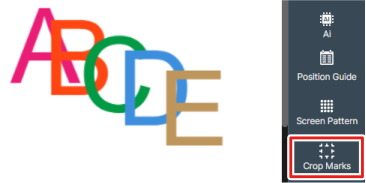
On the function toolbar, click
 Crop Marks.
 Crop marks are displayed in the four corners of the canvas.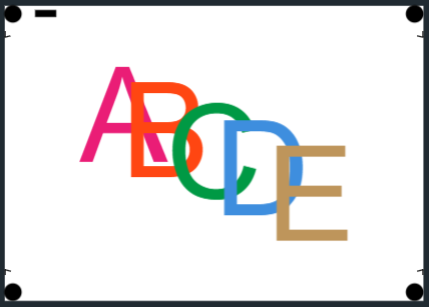
- Save the design.
-
Print the design with the crop marks.
-
When printing using a Roland DG printer
- Click
 Print.
In the [Print Quality] window, check that is selected.
- Click Send to VersaWorks.
The print job for the area excluding the crop marks is sent to VersaWorks. Although the crop marks are not displayed in VersaWorks, printing with the crop marks is performed automatically.
- Click
-
When printing using a commercially available multifunction printer or other device
- Return to the dashboard and click
 Download.
Download the saved design in PDF format.
- Print the downloaded PDF using a commercially available multifunction printer or other device.
- Return to the dashboard and click
-
- Remove the media printed with crop marks from the printer and perform lamination or other work.
- Place the media printed with crop marks in a Roland DG cutting machine.
- Open the design that was saved in Step 4.
-
From the Layers panel on the function toolbar, display the cutting line objects.
-
Click Print.
In the [Print Quality] window, check that is selected.
-
Click Send to VersaWorks.
The print job for the area excluding the crop marks is sent to VersaWorks. The crop marks printed on the media are detected, and cutting is performed along the cutting lines that were specified in the print job.