
Step 5: Creating Data while Checking the Position
Procedure
-
Start Designer.
Click the Designer icon in Roland DG Connect Hub to open Designer.
If the Roland DG Connect login screen is displayed, enter your email address and password.
-
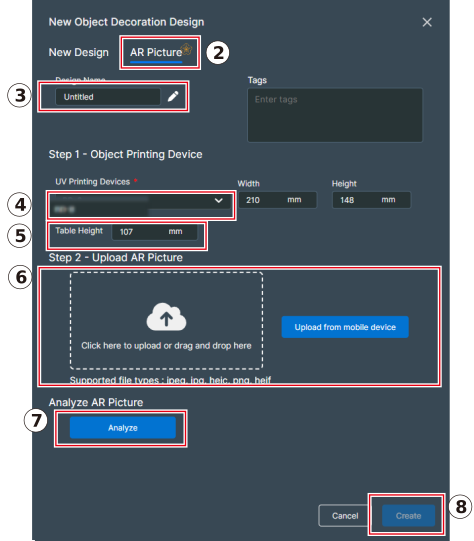
Follow the procedure below to import the captured file saved in Step 4: Capturing the Image of the Object into Designer.
-
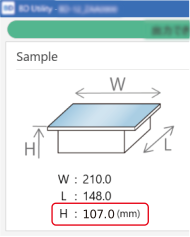
Enter in Table Height the value of Flat Table Height displayed on the Utility home screen.
-
Click Create.
The captured image is cropped to the size of the four alignment markers and is displayed in the design area.
-
Enter in Table Height the value of Flat Table Height displayed on the Utility home screen.
-
Create and save the print data.
Print data is created with the object in the background, so you can work while visualizing how it will look after printing.
For details on creating print data, see the Designer User's Manual.