
Step 4: Capturing the Image of the Object
Procedure
-
On the Utility home screen, click
 .
.
-
Click Preferences, and then click Execute for Alignment Mode.
The flat table moves. Wait until the flat table stops.
-
Keep the following points in mind when performing imaging with a smartphone.
- Focus on the alignment marker.
Perform imaging by focusing on the alignment markers, not the object.
- Turn the flash on.
Capturing the image with the flash on makes it more likely that the alignment markers will be read. Turn the flash on before capturing the image.
- All the alignment markers in the four corners should be included in the captured image.If the alignment markers are hidden or missing, the position cannot be detected. Perform imaging so that all four alignment markers are included in the captured image.
Example of good positioning 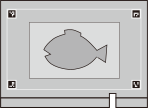
Example of poor positioning 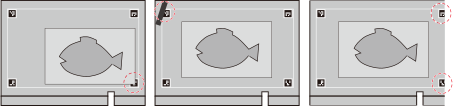
- Perform imaging from directly above the object.Perform imaging with a smartphone (1) as shown in the following figure so that the edges of the object (2) can be detected more easily. Perform imaging so that the sides of the object are not captured, especially for thicker objects.
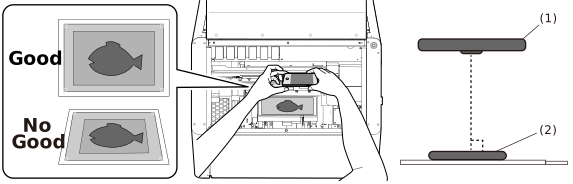
- Save imaging data in jpeg or HEIC format.
If you are using a model whose default photo saving format is not .jpeg or .HEIC *1, change the format to jpeg or HEIC, or convert the saved data to jpeg or HEIC before importing.
- Focus on the alignment marker.
- Save the imaging data to your computer.
- Click Finish.