
3. Performing a Cutting Test
Procedure
- Set up the media that has been laminated or otherwise processed before cutting with crop marks.
- Tap
 .
. - Tap .
- Tap
 next to Separate Test for Printing/Cutting with Crop Marks to turn it on.
 - Tap Execute next to Cutting Test.The Move the blade over a crop mark. screen appears.
- Tap
 ,
,  ,
,  , or
, or  to move the center of the blade over the crop marks to use in the cutting test.The center of the blade should only be over the crop marks, and does not need to be aligned with the center of the crop marks.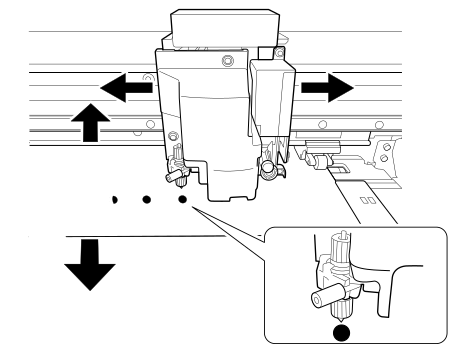
- Tap Execute.The cutting test starts.IMPORTANT Transparent media, light-reflective media, or dark-colored media may prevent the reading of crop marks, making it impossible to perform the cutting test. Try the following if Crop Mark Detection Error is displayed.