
Making Use of Layers for Editing
This section introduces how to make use of the layer function so that you can efficiently and freely finish designs. Organizing objects by layer makes editing go more smoothly and allows you to more easily make fine adjustments.
On the function toolbar, click  Layers to display the layer menu.
Drag an object in the layer menu to change the layer order or move it between layers.
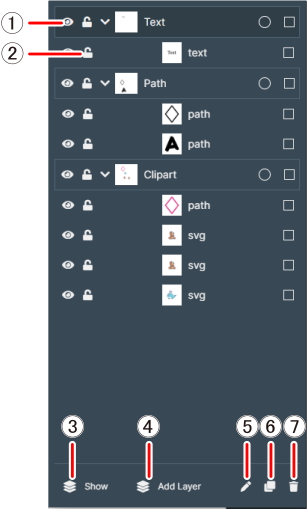
| No. | Name | Description |
|---|---|---|
| Show / Hide | Shows/hides layers and objects. Layers and objects which are hidden are not output during printing. | |
| Lock / Unlock | Locks/unlocks layers and objects. This is used when editing other objects while some objects are pinned to the canvas in a fixed status. | |
| Show | Shows/hides layers and objects of a particular type. | |
| Add Layer | Adds a new layer. You can drag the added layers to change their layer order when displayed on the canvas. The upper layer is displayed in the front. | |
| Edit name | Edits the name of the layer or object. | |
| Duplicate | Duplicates a layer or object. | |
| Delete | Deletes a layer or object. |