
Applying Special Effects to Designs
You can apply special effects to designs to add various expressions. You can change the types of the effects and their settings to adjust the appearance of the design.
-
If necessary, click an object to select it.
To select multiple objects, hold down the [SHIFT] key as you click the objects or drag the mouse to enclose all the objects.
-
On the function toolbar, click
 Effect.
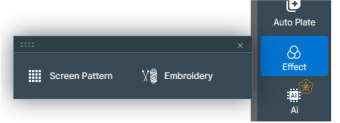
The operation panel is displayed on the right side of the window.
-
Apply a special effect to the design.
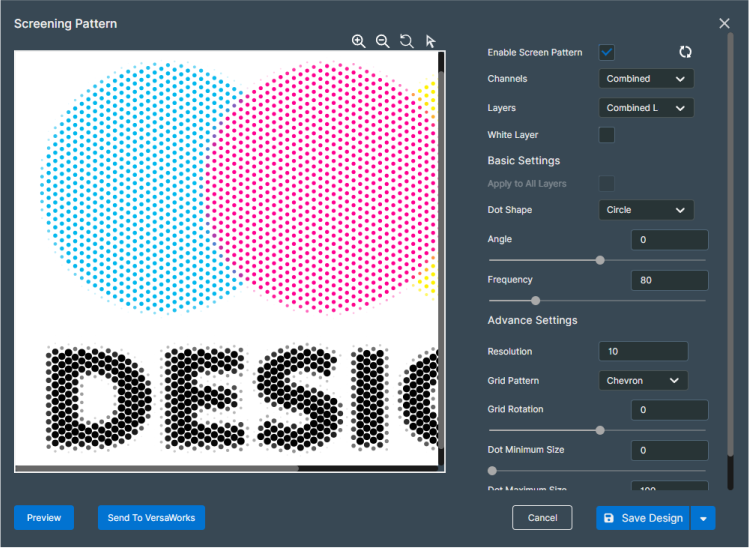
- Screen Pattern
Applies a halftone pattern to the entire canvas. You can configure settings such as the shape, density, and angle of the dots to create an expression such as an angled screen on the printed materials.
MEMOWhen a halftone pattern is applied, the display of the design window does not change, but the icon is displayed as
 .
.
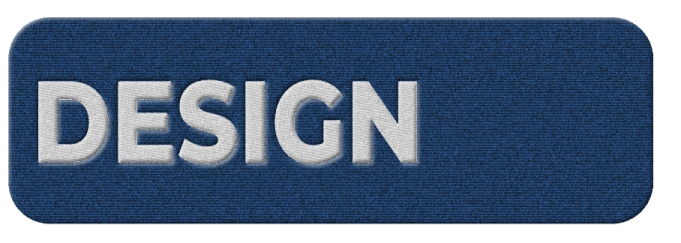
- Embroidery
Applies an embroidered effect to the selected object. You can configure settings such as the pattern and density of the stitches to express a texture that is similar to embroidering.
- Screen Pattern