
Aligning Objects
This section introduces how to display the guide on the canvas and align the positions of the objects.
-
On the design toolbar, click
 Settings.
-
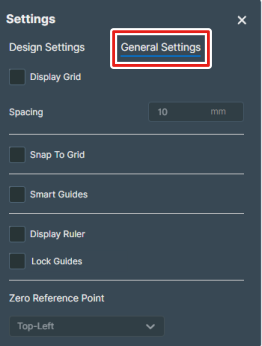
Click General Settings.
-
Display the guide on the canvas.
- Display Grid:
Displays the grid lines on the canvas. The spacing between the grid lines can be set with Spacing.
- Display Ruler:
Displays the ruler on the edges of the canvas. The origin position can be set with Zero Reference Point.
You can drag from the ruler scale toward the canvas to extend the guide lines and place them in the canvas. Select the Lock Guides checkbox to fix the positions of the guide lines. Because the guide lines are not printed, use them to align the object positions.
- Display Grid:
-
Align the object positions.
- Snap To Grid:
This makes it easier to align the positions of the objects with the grid lines displayed on the canvas.
- Smart Guides:
This makes it easier to align the positions of the objects with other objects or guide lines placed in the canvas.
- Snap To Grid: