Importing Sample Images
Use the following procedure to import VersaSTUDIO Designer sample images.
Procedure
-
Click
 .
.
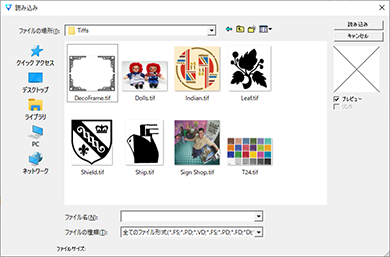
The window for selecting the image file appears.
-
Move to the folder that has the file you want to import.
Here, import a VersaSTUDIO Designer sample file.
The path to the installation folder is as follows (unless you changed this path during installation).
C:\Program Files\SAi\VersaSTUDIO Designer**\Samples\Tiffs
(** indicates the version number.)
-
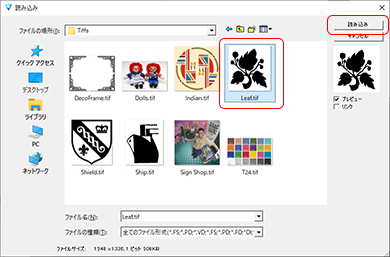
Select "Leaf.tif," and then click Import.
-
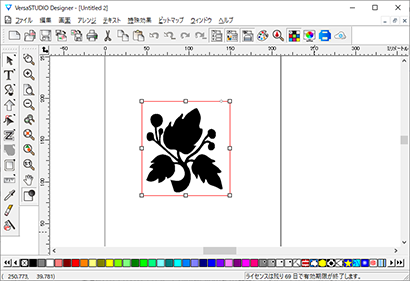
Move the mouse pointer and click the location where you want to insert the image.
The inserted image is displayed on the window.
-
Click
 , and then click the inserted image.
-
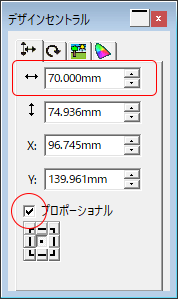
Set the size of the image in the DesignCentral dialog box.
Here, set the width to 70 mm (2.76 in.).
Check that the Proportional check box is selected, and then enter 70 for the width.