
Operation Panel
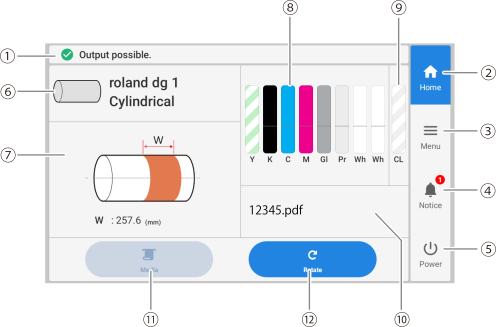
| No. | Name | Details |
|---|---|---|
| Status bar | Displays the printer status and indicates the next operation. | |
| Home | Displays the home screen. | |
| Menu | Displays various setting menus. | |
| Notifications | Displays important information. When there are notifications, their number is displayed next to the icon. | |
| Sub power | Turn off the sub power. Tap the operation panel to turn the sub power back on. | |
| Media name and shape type | Displays the selected media name and shape type. | |
| Printing area and printing reference point | Displays the width of the set printing area and the position of the printing reference point. This is displayed only when the object is loaded. You can tap it to re-set the printing area and printing reference point. | |
| Amount of ink remaining | Displays the amount of ink remaining in each ink tank.  is displayed for ink tanks that require refilling. Tap this icon to display the detailed information for the ink. is displayed for ink tanks that require refilling. Tap this icon to display the detailed information for the ink. |
|
| Amount of cleaning liquid remaining | Displays the amount of cleaning liquid remaining. When the time for replacement arrives, is displayed. Tap to display the cleaning liquid replacement procedure. |
|
| Reprinting | Reprints the most recent printed job. | |
| Media | Select a registered object, or register a new object. Printable Materials and Shapes | |
| Rotate | Adjust the degree of eccentricity of the object mounted on the rotary device relative to the center of rotation. Check the offset amount from the center of rotation and adjust as necessary. Enabled if the object has been set. |
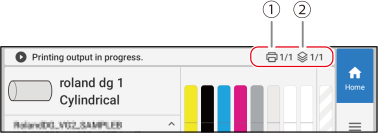
| No. | Name | Details |
|---|---|---|
| Copies to Print | */* is displayed. The left side indicates the number of the copy currently being printed. The right side indicates the total number of copies. | |
| Number of Layers | */* is displayed. The left side indicates which number layer is currently being printed. The right side indicates the total number of layers. |