
Switching the Sub Power On Automatically Every Day or on Specified Days
Procedure
-
Tap
 .
.
- Tap .
-
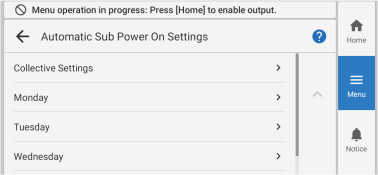
Tap Collective Settings. Alternatively, tap the applicable day from Monday through Sunday.
- Collective Settings: Daily
- Monday to Sunday: Specified days
-
Set the following with Automatic Sub Power On Settings.
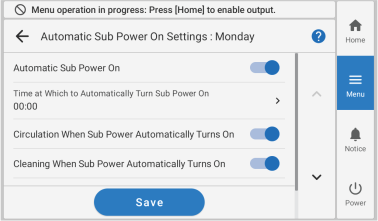
Automatic Sub Power On On:  , off:
Time at Which to Automatically Turn Sub Power On Tap Time at Which to Automatically Turn Sub Power On, and then set the time.
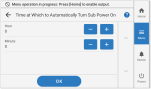
After setting the time, tap OK.
Circulation When Sub Power Automatically Turns On*1 On: , off: Cleaning When Sub Power Automatically Turns On On: , off: Type Tap Type, and then select the cleaning type that is performed when the sub power switches on.- Normal Cleaning
- Medium Cleaning
- Powerful Cleaning
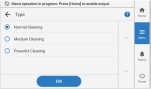
After setting the cleaning type, tap OK.
*1 This menu item is only displayed when the machine ink type includes white ink. - Tap Save….
-
Tap
 to return to the home screen.