
Step 1: Creating Cutting Data
Enter text and shapes, and create cut data. This section explains how to create cut data containing "SALE," and to add a "weed line," which facilitates peeling afterwards.
Procedure
- Start Designer.
- From the dashboard, click New Design.
- Click Visual Communication Design.
- Specify the design setting, and then click Create.
Create a new design by changing the design name, setting the size, and configuring initial settings such as vertical or horizontal orientation.
You can also change the settings later.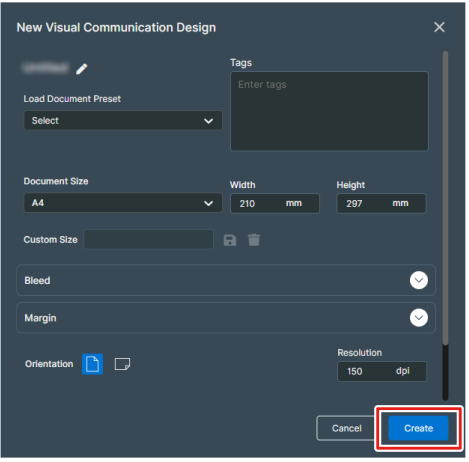
- On the design toolbar, click
 Text.
Text. - Click Add Text.
- Enter "SALE."
- Select the entered text and change items such as the font, font style, and font size.
- On the function toolbar, click
 Contour.The operation panel is displayed on the right side of the window.
 - Click Cut Contour.The contour of the text becomes a cutting line.
- Add a weeding line.
- Weed Border
Adds a weeding line that is a rectangle around the object. Use Offset to specify the weeding line frame from the object.
- Horizontal
Adds a horizontal weeding line inside the frame when Weed Border is on. Specify the Segment or Space.
- Vertical
Adds a vertical weeding line inside the frame when Weed Border is on. Specify the Segment or Space.
- Weed Border
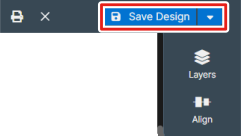
- Click Save Design in the upper-right corner of the window.The input window for the file attributes to be saved is displayed.
- If necessary, enter the file attributes.To change the file name, use Title.MEMO It is a good idea to enter keywords that you can use to identify the design you have created in Tags. This will help you manage the design more efficiently. These will function as search keywords for when you are searching for designs from the dashboard.
- Click OK to save.Design files are stored in a storage area (cloud storage) assigned to the individual Roland DG Connect account. You can re-open and load the saved design files from Open Recent on the dashboard.