Step 2: Attach the Object to Be Printed on for the Printing Test
Never climb on the table.
Doing so may result in injury. It may also decrease the table accuracy.
Wear protection such as safety shoes and gloves when handling heavy objects to be printed on.
Failure to do this may cause injury.
- If there are suction holes that are not covered with an object to be printed on in the suction area, cover them by placing thin sheets such as paper, film, and tape.
- Lower the suction pressure when setting a thin object to be printed on. Strong suction may leave marks of the suction holes.
- The edges of an object to be printed on may warp. Objects to be printed on that warp may become torn or may damage the print heads when contacting the print-head carriage. Use adhesive tape to additionally secure these objects.
- To prevent the table from deforming, note the following points when setting objects to be printed on.
- Do not drop heavy objects on the table.
- Do not concentrate the weight of an object to be printed on.
Check that the print-head carriage has returned to the maintenance station. If the machine detects an intrusion into the movable range of the print-head carriage while the carriage is not in the maintenance station, the safety protection function is activated to stop the machine.Safety Protection Function
-
Prepare an object for a printing test.
Printing tests are used to check that no dot drop-out or dot displacement occurs. Use an object prepared for the printing test (width 200 mm (7.88 in.) × length 300 mm (11.82 in.) or larger), instead of using an actual object to be printed on.
-
Place the object on the flat table.
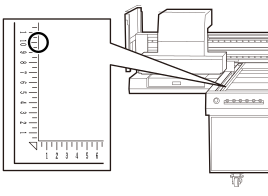
Align the edges of the object to the X and Y axes of the flat table.IMPORTANT
The print origin on the Y axis is set at 100 mm (3.94 in.) on the scale of the flat table.
-
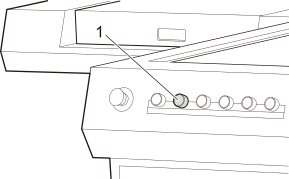
Press the [Main Power of Flatbed Vacuum] button (1) to activate the negative pressure.
-
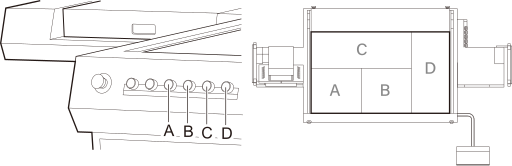
Press the [Vacuum Area] button in the location where the object to be printed on was placed.
The negative pressure is activated, fixing the object to be printed on in place.MEMO
If more than one [Vacuum Area] button is pressed simultaneously, negative pressure temporarily may become insufficient, failing to secure the object to be printed on firmly. If this is the case, wait until negative pressure becomes stabilized or press the [Vacuum Area] buttons at intervals.
-
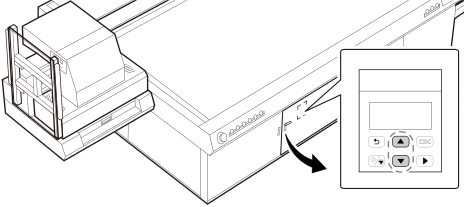
Adjust the negative pressure acting on the object to be printed on by pressing the [▲] or [▼] button on the vacuum controller.
If the object to be printed on cannot be secured firmly, try the following.
- Change the negative pressure activation area with the [Vacuum Area] buttons.Flat Table
- Press the [▲] button on the vacuum controller to increase the output.
To lower the output, press the [▼] button.