Importing Sample Images
Use the following procedure to import VersaSTUDIO Designer sample images.
Procedure
-
Click
 .
.
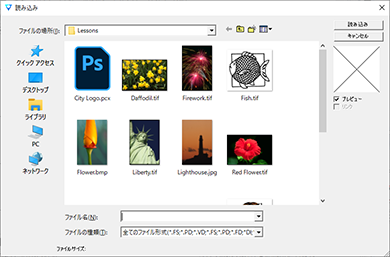
The window for selecting the image file appears.
-
Move to the folder that has the file you want to import.
Here, import a VersaSTUDIO Designer sample file.
The path to the installation folder is as follows (unless you changed this path during installation).
C:\Program Files\SAi\VersaSTUDIO Designer**\Samples\Lessons
(** indicates the version number.)
-
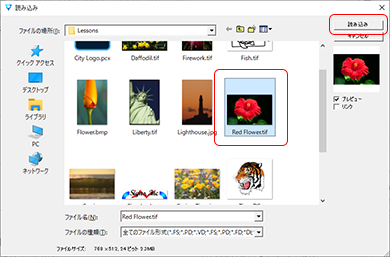
Select "Red Flower.tif," and then click Import.
-
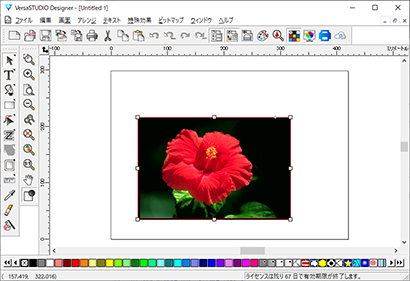
Move the mouse pointer and click the location where you want to insert the image.
The inserted image is displayed on the window.
-
Click
 , and then click the inserted image.
-
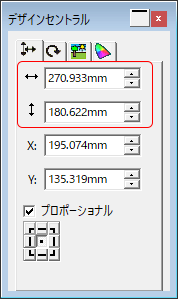
Record the size of the image in the DesignCentral dialog box.
The recorded size will be used in the next step as the shape size.