
Replacing the Wiper
Replacement is necessary if the The time for wiper replacement has arrived. message appears.
For information about purchasing wipers, contact your authorized dealer or visit our website (https://www.rolanddg.co.jp/).
WARNING
Be sure to perform operations as specified by the instructions, and never touch any area not specified in the instructions.
Sudden movement of the machine may cause injury or burns.
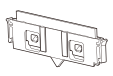
| Required items | ||
|---|---|---|
 |
 |
 |
| Wiper | Cleaning stick | Cleaning liquid |
IMPORTANT
- To prevent the print heads from drying out, finish this procedure in 10 minutes or less. A warning beep sounds after 10 minutes.
- Take care to prevent ink from adhering to the operation panel.
Procedure
- When the message The time for wiper replacement has arrived. appears, tap OK.
- Remove any media.
-
Tap
 to display the messages.
-
Tap The time for wiper replacement has arrived..
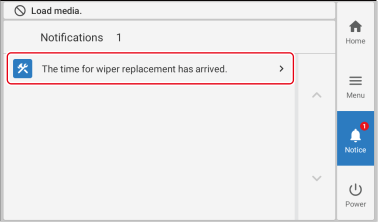 The Wiper Replacement screen appears.
 - Tap Execute.
-
Tap OK.
The print-head carriage moves to a location where wiper replacement is possible.
-
Follow the instructions on the operation panel to replace the wiper.
- Tap
 or
or  to check the procedure.
 - If you complete the work without viewing the instructions, tap Finish All.
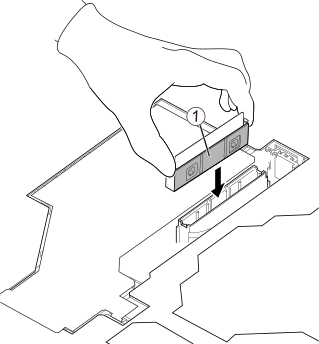
IMPORTANT- Install the wiper so that surface (1) faces to the right.
- After installing the wiper, hold the hooks on the left and right sides, pressing in just enough so that the locks are not released. Then, gently pull the wiper up and check that it is not removed.
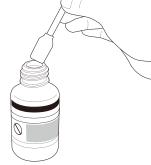
IMPORTANT- Be sure to use one of the included cleaning sticks.
- Do not use a previously used cleaning stick.
- Do not put a previously used cleaning stick into the cleaning liquid.
- Tap
- When the replacement of the wiper is complete, tap Finish All.
-
When Close the cover. appears, close the right cover.
When you close the right cover, you are returned to the original screen.
-
Tap
 to return to the home screen.