
Printer Unit
Front
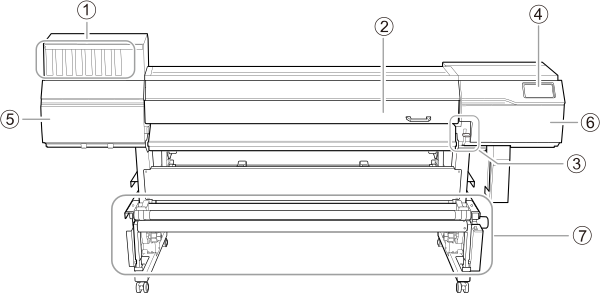
| No. | Name | Function overview |
|---|---|---|
| Cartridge slots | The location where ink cartridges are installed. | |
| Front cover | Open this when necessary, such as when loading media. Keep this cover closed when not loading media or performing maintenance. | |
| Loading lever (front) | Secures the media in place and releases it. Use this lever when working at the front of the machine. Lowering the lever secures the media in place. |
|
| Operation panel | The panel containing the buttons used to operate the machine. | |
| Left cover | Open this when you perform maintenance. | |
| Right cover | Open this when you perform maintenance. | |
| Take-up Unit | Takes up the media after printing. This prevents the printed media from touching the floor. |
Rear
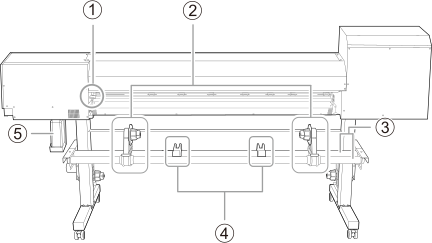
| No. | Name | Function overview |
|---|---|---|
| Loading lever (rear) |
Secures the media in place and releases it. Use this when working behind the machine. Lowering the lever secures the media in place. | |
| Media holders | Use these when you load media. | |
| Shafts | ||
| Media stays | ||
| Drain bottle | Discharged fluid is stored in this bottle. When discharged fluid is nearly overflowing from the bottle, an error is displayed and printing is not possible. |
Side
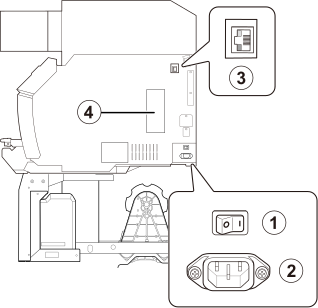
| No. | Name | Function overview |
|---|---|---|
| Main power switch | Switches the main power of the machine on/off. | |
| Power-cord connector | Used to connect the power cable from which power is supplied to the machine. | |
| Ethernet connector | Connects an Ethernet cable. | |
| Cleaning cartridge slot | This is the location where the cleaning cartridge is installed. |
Front Cover Interior/Print Head Carriage Area
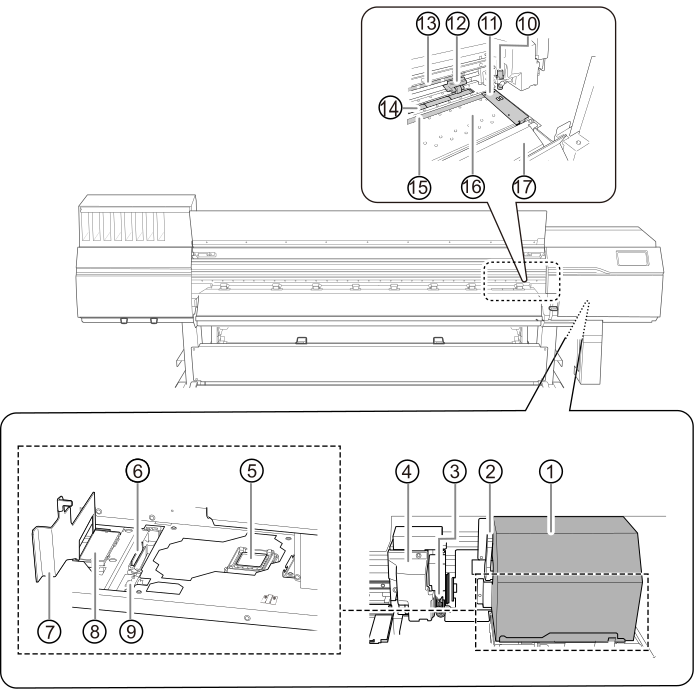
| No. | Name | Function overview |
|---|---|---|
| Print-head carriage |
Transports the built-in print heads. |
|
| Height-adjustment lever | You can adjust the print-head height. | |
| Separating knife |
This separates the media. |
|
| Cutting carriage |
The blade and the separating knife are inside here. |
|
| Print head cap |
Prevent the print heads from drying out. Seals to the print heads to protect the ink emission surface when the print heads are at the right side of the machine, such as when waiting for printing. |
|
| Wiper | Cleans the print heads. Removes dirt and excess ink that have adhered to these heads. |
|
| Flushing cover |
Prevents the flushing sponge from coming off. Open the flushing cover when performing the following work. Keep the flushing cover closed except when performing this operation.
|
|
| Flushing sponge |
Absorbs the ink being discharged (flushed) to prevent clogging. |
|
| Wiper cleaner | Removes ink and dirt that have adhered to the wiper. | |
| Blade holder | Houses the blade used during cutting. | |
| Media clamp |
Clamps the left and right edges of the media. Each clamp holds down the left or right edge of the media, keeping the media from coming loose and preventing fuzz on the cut edge of the media from touching the print heads. |
|
|
Pinch roller |
Clamps the media together with the grit roller for transporting. The roller can be raised or lowered by moving the loading lever up or down. |
|
| Grit pattern | Indicates the location of a grit roller. When loading media, be sure to place the pinch rollers within the ranges indicated by these patterns. | |
| Grit roller |
Transports the media. |
|
| Blade protector | Protects the cutter blade as it penetrates the media during cutout. | |
| Platen |
This is the path over which the media passes. The platen has a built-in suction fan and heater (print heater) that keep the media from coming loose. |
|
| Apron |
This is the path over which the media passes. The apron contains a heater (dryer) to accelerate ink drying. |