
1. Clean the print head caps.
Procedure
- Remove the object to be printed on.
-
Tap
 Cleaning.
- Tap Manual Cleaning.
-
Select the table position for when performing Manual Cleaning.
Select either the center or the back.MEMO
When a rotary axis unit is attached, select Table Position: Center.
When the Vacuum Table Is Attached Condition Table Position: Center When a jig is not installed over the vacuum table Table Position: Back When a jig is installed over the vacuum table When the Vacuum Table Is Not Attached Condition Table Position: Center - When a jig is not installed over the flat table
- When a jig with a height of less than 100 mm (3.93 in.) is installed over the flat table
Table Position: Back When a jig with a height of more than 100 mm (3.94 in.) is installed over the flat table -
Tap Execute.
Tap Execute to display a message reminding the user to wear protective gear.
-
Tap OK.
Tap OK to move the print-head carriage and table.
-
Follow the instructions on the operation panel to perform Manual Cleaning.
- Tap
 or
or  to check the procedure.
 - If you complete the work without viewing the instructions, tap Finish All.
IMPORTANT- Be sure to use one of the included cleaning sticks.
- Do not use a previously used cleaning stick.
- Do not put a previously used cleaning stick into the cleaning liquid.

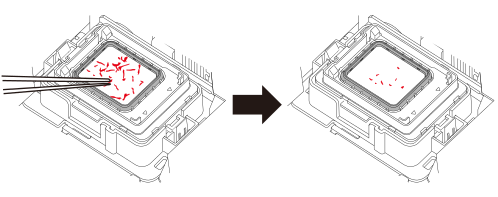
IMPORTANTUse a pair of tweezers to remove the pieces of hardened ink that are 3 mm (0.12 in.) or more in length.
Do not use excessive force when pulling on pieces of hardened ink that are difficult to remove. Doing so may damage the print head caps.
。
When you have finished cleaning, close the maintenance cover.
- Tap