
Step 1: Performing a Nozzle Drop-out Test
MEMO
When performing printing tests successively, you can select Feed (vertical printing) or Scan (horizontal printing) as the print position for the second and later tests in comparison to the first test.
Procedure
- Set up the media.
- Tap
 Nozzle Drop-out Test on the home screen.
 - Tap Execute next to Printing Test.Printing of the test pattern starts.MEMO To change the start position for the printing test, tap Change for Output Start Location and change the output start location. For details on this work, refer to Changing the Base Point.
- Check whether there is dot drop-out or dot displacement in the test pattern.Missing blocks indicate dot drop-out. Collapsed or inclined blocks indicate dot displacement.
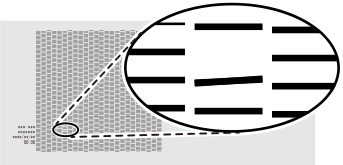 MEMO If the printing-test results are difficult to interpret
Check the results in a bright location, changing your line of vision. They are visible using the reflection of the light.
- If dot drop-out or dot displacement is present, perform normal cleaning.
Step 2: Performing Normal Cleaning
If there is no dot drop-out or dot displacement, proceed to the next step.
- If you have opened the front cover, close it.If no dot drop-out or dot displacement occurs, preparations for output are finished.
- Tap
 .You are returned to the home screen.