
Replacing the UV Mist Filters
When it is time to replace the UV mist filters, the message The time for UV mist filter replacement has arrived. appears. If this message appears, replace the UV mist filters.
For information about purchasing UV mist filters, contact your authorized dealer or visit our website (https://www.rolanddg.com/).
Be sure to perform operations as specified by the instructions, and never touch any area not specified in the instructions.
Sudden movement of the machine may cause injury.
| Required item |
|---|
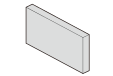 |
| UV mist filters |
- To prevent the print heads from drying out, finish this procedure in 10 minutes or less. A warning beep sounds after 10 minutes. Stop work, close all the covers, and then tap Finish All to end the procedure. After that, restart the procedure from the beginning.
- Take care to prevent ink from adhering to the operation panel.
- When the message The time for UV mist filter replacement has arrived. appears, tap OK.
- Remove the object to be printed on.
-
Tap
 to display the messages.
-
Tap The time for UV mist filter replacement has
arrived..
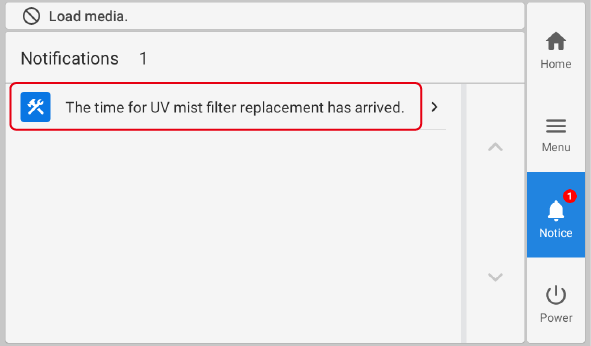 The UV Mist Filter Replacement screen appears.
 -
Tap Execute.
Tap Execute to display a message reminding the user to wear protective gear.
-
Tap OK.
Tap OK to move the print-head carriage to a location where the UV mist filter can be replaced.
-
Follow the instructions on the operation panel to replace the UV mist filters.
- Tap
 or
or  to check the procedure.
 -
If you complete the work to replace the UV mist filter without viewing the instructions, tap Finish All.
MEMOUV mist filters do not have a specified front or back. They can be attached with either orientation.
- Tap
- When the UV mist filter replacement is finished, tap Finish All.
-
When Close the cover. is displayed, close the left cover.
When you close the left cover, you are returned to the original screen.
-
Tap
 to return to the home screen.