This section explains how to create a positioning guide to make it easier to decide the positional relationships of the jigs, objects to be printed on, and designs to be printed.
Procedure
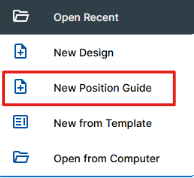
From the dashboard, click New Position Guide.
A new design window opens and the Position Guide operation panel is displayed on the right side of the window.
Select the machine to print from and the origin position.
Set the sizes and positional relationships of the jigs, objects to be printed on, and designs to be printed.
Jig Layer: Specifies the jig size. The size specified here becomes the size of the entire design.
Object Layer: Specifies the size and placement of the objects to be printed on.
Image Layer: Specifies the size and placement of the designs to be printed.
Select Create Mode and decide the number to place.
Click Create.
The positioning guide is displayed in the canvas. The created positioning guide can be saved by clicking Save Position Guide.

 Position Guide operation panel is displayed on the right side of the window.