
Creating a New Design
Set the canvas size and create a new design from scratch, or load a photographed image (AR image) and create a design.
Procedure
-
From the dashboard, click New Design.
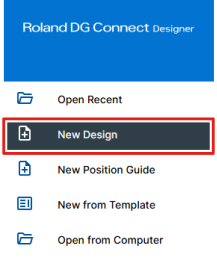
-
Select Object Decoration Design.

-
Specify the design settings.
-
When creating a new design from scratch
After changing the design name and configuring the size settings, click Create.
You can also change the settings later from the design window.
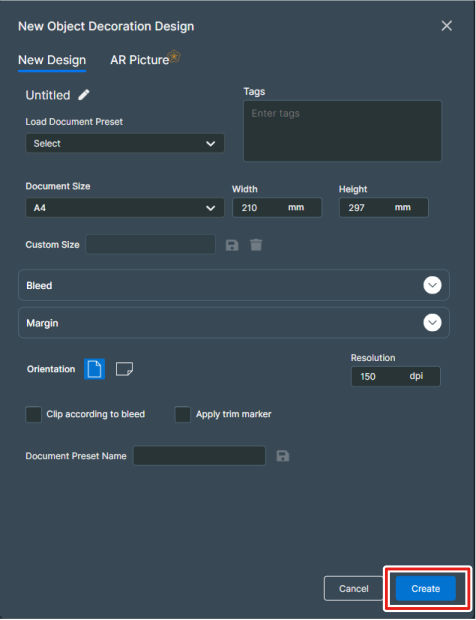
-
When loading a photographed image (AR image) and creating a design
- Click the AR Picture tab.
- Change the design name and select the machine to print from.
- Enter the value of Flat Table Height displayed on the Utility home screen into Table Height.
- Upload the photographed image (AR image).
When uploading an image from a smartphone, scan the 2D code that is displayed when Upload from mobile device is clicked and then select the image.
- Click Analyze to load the photographed image (AR image).
If image loading is successful, the
 icon is displayed.MEMO If AR image loading failed, the following are possible causes. Eliminate the cause and then upload the AR image again.
- The photographed image is out of focus.
- The uploaded file is an unsupported format.
- The alignment markers are not clearly visible.
- The AR image is excessively distorted or tilted.
- The resolution of the AR image is low. (720 × 720 px or higher is recommended.)
- Click Create.
-