
Printing Using the Positioning Guide
Create a design based on the positioning guide and print it with VersaWorks.
Procedure
-
From the dashboard, click .
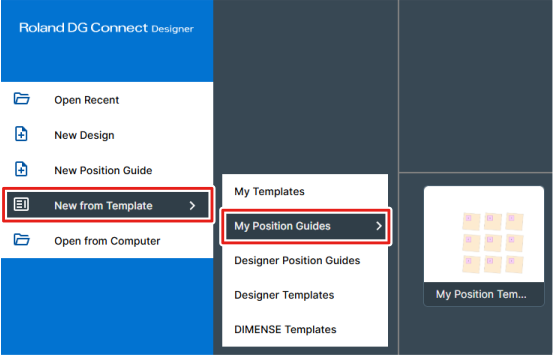
-
Double-click the positioning guide that you want to use to open it.
The design window is displayed.
-
Assign the print design to an image layer.
-
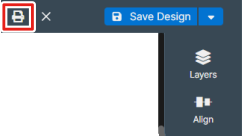
Click
 Print in the upper-right corner of the window.
The Print Quality window appears.
If editing of the design is in progress, perform the operation after saving the design file.
-
Select the printer and printing settings.
Select the data to print on the Position Guide tab.
- Print Jig Frames: Prints the jig border lines (canvas border lines).
- Print Object Placeholders: Prints the data indicating the object to be printed on that is placed on the object layer.
- Print Slot Numbers: Prints the number for design assignment that is displayed on the image layer.
- Print My Design: Prints the objects assigned to the image layer.
MEMO The printing settings selected in this step are given higher priority than the queue A printing settings of the specified printer registered in VersaWorks.MEMO Depending on the status of the connection with VersaWorks, the Warning window may appear.Check that Roland DG Connect Hub and VersaWorks are running, and then click Refresh or log out from and back in to Designer.
-
Click Send to VersaWorks.
The print job is sent to VersaWorks and output to the printer according to the specified printing settings.