
Window Layout
Dashboard
The dashboard consists of three windows: Design, Position Guide, and Review. Use the menu on the left side to switch between these windows.
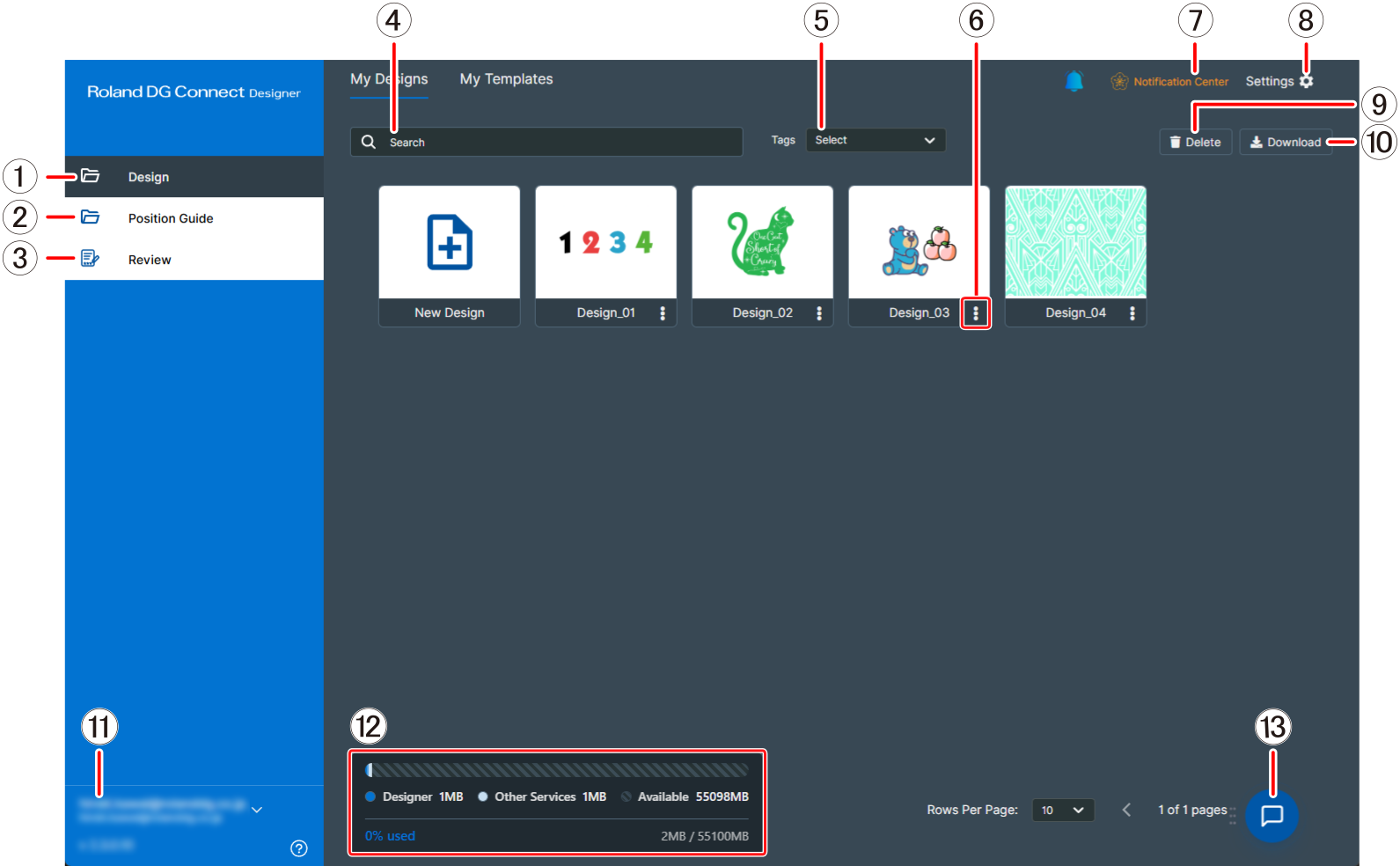
| No. | Name | Description |
|---|---|---|
| Design | Allows you to create and manage designs and templates. Under My Designs, the created designs are listed with thumbnails. Double-click New Design to create a new design. Double-click a saved design to display the design window. Under My Templates, the saved templates are listed with thumbnails. Click |
|
| Position Guide | Allows you to create and manage positioning guides and positioning jobs. Under My Position Guides, the saved positioning guides are listed with thumbnails. Double-click New Position Guide to create a new positioning guide. Under My Position Jobs, the saved positioning jobs are listed. |
|
| Review | Allows you to check the reviews that you have requested and the reviews that you are in charge of. Under Sent For Review, the reviews that you have requested are listed. Under Review Requested, the reviews that you are in charge of are listed. Normally, the unfinished reviews are displayed. Click Show Completed to display the finished reviews and switch the display of the button to Hide Completed. Using Design Reviews |
|
| Search | Enter a name to filter the items displayed on the current tab. | |
| Tag | Specify tags to filter the items displayed on the current tab. | |
| Actions | Duplicates, edits, deletes, downloads, sends a review for, or prints the design, template, or similar item. | |
| Notification center | Allows you to check notifications and the latest information related to Designer. | |
| Settings |
Allows various Designer settings to be changed. |
|
| Delete | Deletes the selected design or template. You can delete multiple items all at once. | |
| Download | Downloads the selected design. You can select the format of the file that will be downloaded. | |
| User Name | Displays the email address of the user currently logged into Roland DG Connect. | |
| Storage usage status | Allows you to check the usage status of the storage of the Roland DG Connect account that you are using.
If the amount of saved data reaches the upper limit, you will not be able to create a new design. Purchase additional storage for saving or delete unnecessary designs, templates, etc. to free up storage space. |
|
| Support Chat | This is an auto-response support function that helps you resolve questions or problems when using Designer. You can easily ask questions in a chat format, so please make use of this feature whenever you face a problem. |
 for a design or template to display the actions that you can use.
Design Window
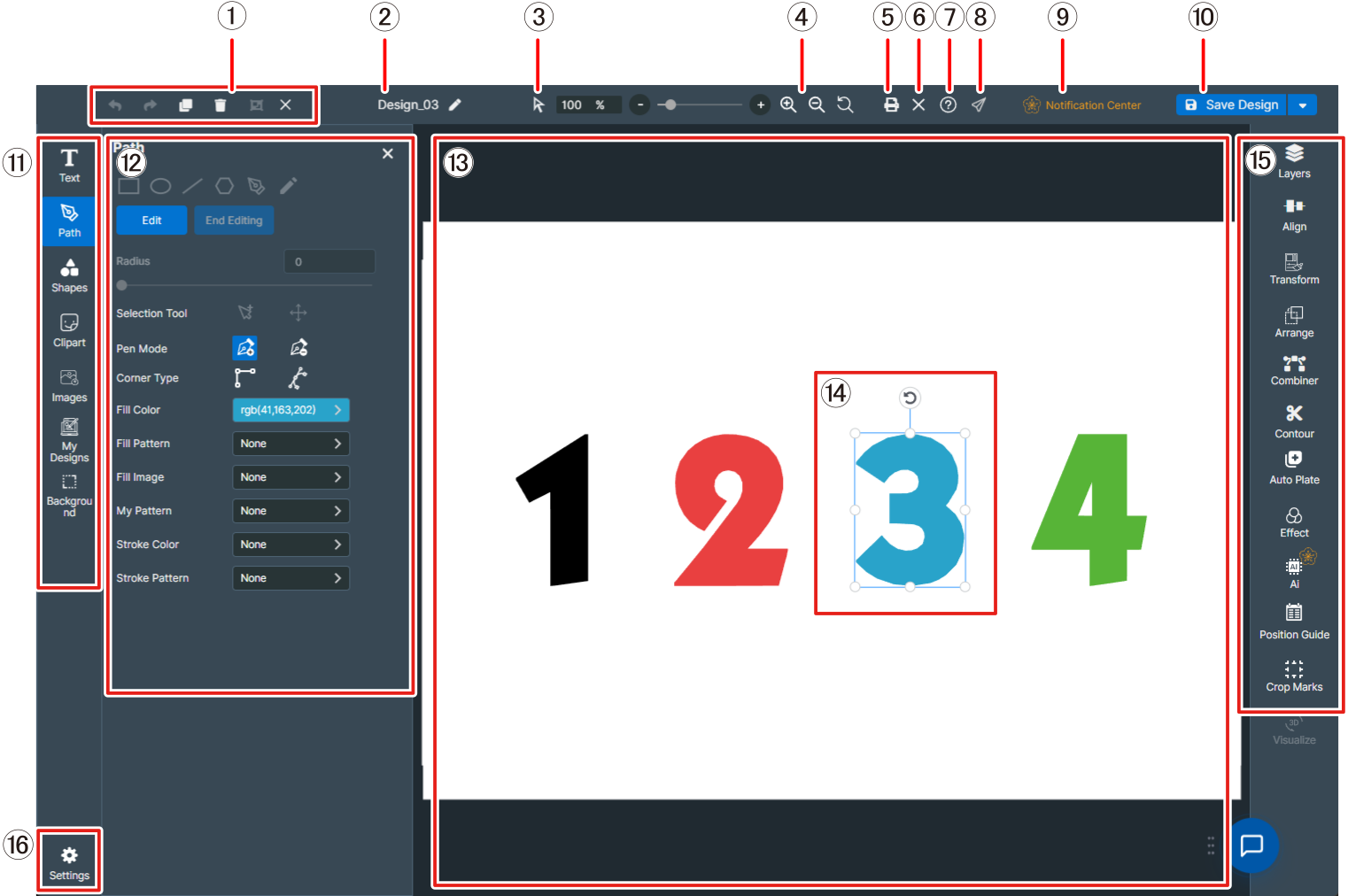
| No. | Name | Description |
|---|---|---|
| Design Support Tool | This is the basic operation menu for editing designs. | |
| Title | Displays the name of the design being edited. Click to change the design name. | |
| Pointer tool / Hand tool | You can switch between the pointer tool ( ), which is used to edit objects placed on the canvas, and the hand tool ( ), which is used to edit objects placed on the canvas, and the hand tool ( ), which is used to move the display position on the canvas after zooming in. ), which is used to move the display position on the canvas after zooming in. |
|
| Screen display zoom | Changes the window magnification. Select  Zoom In or Zoom In or  Zoom Out and drag the location where you want to zoom in or out to change the screen display. Zoom Out and drag the location where you want to zoom in or out to change the screen display. |
|
| Sends the design you have created to VersaWorks for printing. | ||
| Close | Closes the design window for the editing in progress and returns you to the dashboard. | |
| User's Manual | Displays the Designer User's Manual. | |
| Send review | Shares the created design, allowing you to request its review. | |
| Premium function |  is a premium function, but for trial purposes, it can be used a number of times even with the free version. Click to display the page that introduces the premium functions. is a premium function, but for trial purposes, it can be used a number of times even with the free version. Click to display the page that introduces the premium functions. |
|
| Save | Saves a design being edited. If you plan to reuse a design, select Save As Template to save the design as a template. | |
| Design Toolbar | Includes tools for adding images, text, and other objects to the canvas. | |
| Operation Panel | Displays the settings for a selected object. Clicking an item displays more detailed settings (if available). | |
| Canvas (Editing Area) |
Place objects in this area to edit them and create data for output. Objects that extend beyond the canvas are not output. |
|
| Object interface items |
To change the size, drag the To change the aspect ratio, drag the To change the angle, drag |
|
| Function Toolbar | Used to perform design placement functions, such as configuring layer settings and position alignment. | |
| Design Settings | You can change the basic settings of the design being edited. Configure settings such as the canvas size, orientation, and color profile. |
 at the node of the interface item. When doing this, the aspect ratio will be preserved.
 .
.