
Starting Output
Never touch the print-head carriage while output is in progress.
The print-head carriage moves at high speed. Coming into contact with the moving carriage may cause injury.
Do not touch the dancer roller needlessly.
The media take-up unit and feeder may move suddenly, which may result in injury.
If you are using white ink
Before the start of daily operations, remove just the white ink cartridge, shake it 50 times (about 20 seconds), and then reinsert it.
The ingredients in white ink tend to settle. Each day, before starting the day's operations, be sure to shake this cartridge. Allowing the ink to stand can cause the settled material to harden, resulting in malfunctions or other problems.
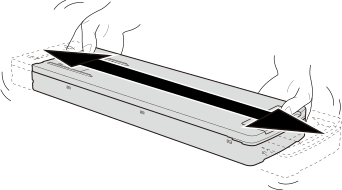
- Before shaking the ink cartridge, wipe off any ink from around its mouth. If you do not wipe off the ink, it may splatter when you shake the ink cartridge.
- When shaking the ink cartridge, firmly hold it with both hands to prevent the ink cartridge cover from coming loose. The cover and ink pouch coming loose and falling may lead to damage or printer failure.
- When you have finished mixing the ink, reattach the ink cartridge immediately. Taking time to reattach the ink cartridge will adversely affect the ink path.
- Even if you are not using the printer, shake the white ink cartridge 50 times (about 20 seconds) once a week.
- Close the front cover.
- Make sure Output possible. is displayed at the top of the operation panel.
- Send the output data from the computer.For information on how to create the output data, refer to the documentation for the included software RIP.MEMO
-
When you send the output data, Ink circulation in progress. or Normal cleaning in progress. may be displayed on the screen. These indicate the preparation operations performed before output. Output will begin after the time displayed on the screen elapses.
- If Heater warm up in progress. Please wait. is displayed, wait until the set temperature is reached.
- The data being output can be viewed as an image. Tap
 shown in the following figure to switch to the remaining ink screen. Tap this icon again to return to the screen for checking the data being output. However, this functionality is limited to software RIPs that support the display of the output data image (thumbnail).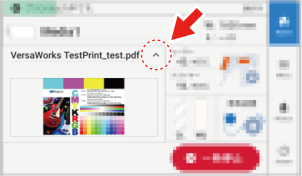
IMPORTANTOutput is not possible in these situations
The machine does not run when a cover (front, left, or right) is open.
Data from the computer is not accepted when Load media. is displayed.
If the print heater and dryer do not reach the set temperature, the output will not start. Wait until the set temperature is reached.
- On menu screens where Menu operation in progress: Press [Home] to enable output. is displayed, output doesn't start even when data is sent from the computer. When you return to a menu item where output is possible or tap
 to return to the home screen, output starts.
Points that must be observed
Never open a cover (front, left, or right) while output is in progress. Doing so interrupts printing.
When you are performing printing, clamp the edges of the media with the media clamps. Otherwise, the edges of the media may warp and catch on the print heads.
During output, do not touch the media. Doing so may obstruct the media feed or cause the media to rub against the print heads, which may result in a paper jam or damage to the heads.
Keep the loading lever raised when the machine is not in use.
When not using the machine, remove any media and store it in a suitable environment.
- If the machine is left with the media loaded, the media may be damaged, which may adversely affect printing. When not using the machine, remove any media and store it in a suitable environment.
-