
Creating Templates with Illustration Software
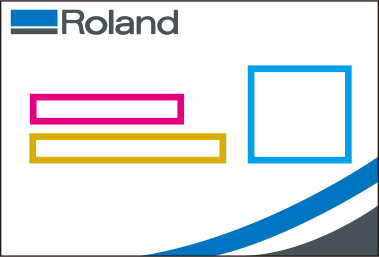
IMPORTANT In cases such as when printing on transparent media, a white plate is not printed in the variable fields even when a white plate is added to the template. When printing a white plate in a variable field, create a template in VersaWorks, then refer to 4. Configuring the Variable Printing Settings to specify the white plate.
Procedure
- Start the illustration software and create a new file.
- Decide the fields where variable printing will be performed (fields in which different text and images are printed).MEMO Up to 200 variable fields can be created for one template.
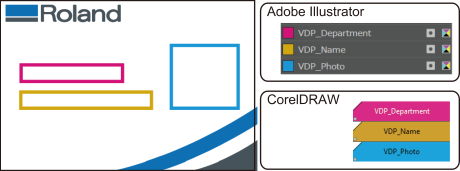
- Create a Spot Color with the name VDP_(variable field name) in the same number as the number of variable fields.For example, when creating three variable fields for "Department," "Name," and "Photo," create Spot Color with the names VDP_Department, VDP_Name, and VDP_Photo. For the method of creating a Spot Color, see the instruction manual of the illustration software you are using.IMPORTANT Be sure to observe the following points when creating a Spot Color. If the spot color names are incorrect, VersaWorks will not recognize the variable fields.
- Enter "VDP" in all capital letters.
- Do not omit the "_" (underscore)
- Using the created Spot Color, draw rectangular shapes (rectangles or squares) for the variable fields.These rectangular shapes will be recognized as variable fields by VersaWorks. Fields with non-rectangular shapes (such as circles and trapezoids) will not be recognized as variable fields by VersaWorks.
- Save the template in PDF, EPS, or PS format.