
Medium Cleaning Method
IMPORTANT
Medium cleaning consumes more ink than normal cleaning, and overly frequent use may damage the print heads themselves. Avoid performing this operation more than necessary.
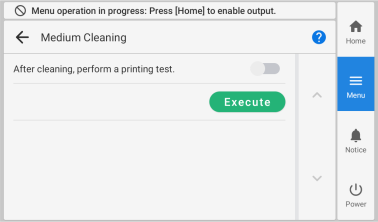
MEMO If the media has already been set up, the After cleaning, perform a printing test. menu appears on the Medium Cleaning screen. When this setting is turned on, a printing test is performed after cleaning.
Procedure
- Set up the media.
-
Tap
 .
.
-
Tap .
The screen shown below appears.
-
Tap Execute.
Cleaning will start. The details of the operation in progress and the (approximate) remaining time of that work are displayed in the status bar at the top of the screen. When the work is finished, the status bar returns to its original display.
-
Tap
 .
.
- Tap Printing Test.
-
Select Nozzle Drop-out Test and tap Execute.
Perform a printing test again to check whether the dot drop-out and dot displacement have been corrected.MEMO
- If the problem persists, try performing medium cleaning again.
- If problems such as dot drop-out and dot displacement persist even after you have performed medium cleaning several times, perform "powerful cleaning."
-
Tap
 to return to the home screen.