3. Registering the Media
Procedure
-
Tap
 Setup.
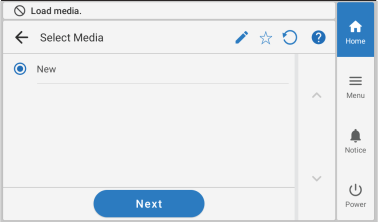
- Select New.
-
Tap Next.
-
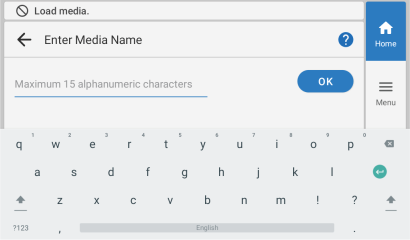
Enter a new media name and tap OK.
-
Check the name you have entered and tap Next if it is correct.
To make corrections, tap the name you entered.
- The Setup Method screen appears. Select whether to use the take-up unit.
-
Tap Start Setup.
The cutting carriage moves and detects the width of the media and the positions of the media clamps. This operation is called initialization.
-
When The media could not be detected automatically.Manually
set the printing screen appears, use the following procedure to configure the settings.
MEMO
- This message may appear when media with high reflectance is set up.
- In the case of media where automatic media detection was not possible after new media was registered, the screen automatically changes to the Printing Area Settings screen in Step (2).
-
Hold down
 or
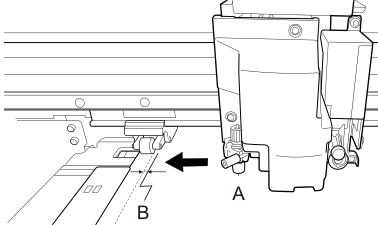
or  to move the center of the blade (A) approximately 2 mm (0.08 in.) to the inside (B) from the left edge of the right pinch roller.
-
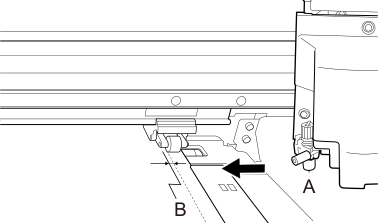
Hold down or to move the center of the blade (A) approximately 2 mm (0.08 in.) to the inside (B) from the right edge of the left pinch roller.