Setting the Take-up Unit

Make sure the following settings match the loading method and output method of the actual media.

The settings will have to be changed from the defaults when:

  • Using weak media
  • Taking up the media with an inward curl
  • Taking up the media during cutting process in the Print & Cut mode
Procedure
Follow the procedure below to configure the take-up unit.
  1. Tap Panel_Icon_Menu.
  2. Tap Preferences - Take-up.
  3. Tap Take-up during Cutting.
  4. Select Enabled or Disabled.
    Enabled

    The media is taken up during cutting while slack is being created. This prevents the media from sticking to the floor. Make sure the media is taken up at least halfway around the paper tube beforehand.

    Disabled

    The media is taken up after all cutting finishes.

    MEMO
    • Default setting: Disabled
    • Enabled cannot be performed in the following situations:
      • Blade Adjustment - Printing Test
      • Print & Cut Position Adjustment - Printing Test 1(Misalignment Check)/Printing Test 2(Correction Values)
      • Crop Cut Position Adjustment - Printing Test 1(Misalignment Check)/Printing Test 2(Correction Values)
    IMPORTANT When Preferences - Take-up - Enabled is set, to preserve cut quality, the speed may be limited to the optimum speed for Cutting Speed and Rise Movement Speed depending on the set media.Fine-tuning the Cutting Conditions
  5. Tap Save.
  6. Tap Take-up Method.
  7. Select Loose Winding or Tension Winding.
    Loose Winding

    The media is taken up with some slack. This is suited to PVC and other such stiff or slippery media.

    Tension Winding The media is stretched and taken up. This is suited to tarpaulin and other such weak media and media that does not slip easily.

    Even if Tension Winding is set, if Enabled is enabled, the media is taken up while slack is being created.

    MEMO
    • Default setting: Loose Winding

  8. Tap Save.
  9. Tap Take-up Direction.
  10. Select Backward or Forward.
    Forward

    The media is taken up onto the paper tube with the printed surface on the outside.
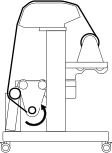

    VG3_TU_Side_FORWARD
    Backward The media is taken up onto the paper tube with the printed surface on the inside.
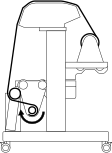
    VG3_TU_Side_BACKWARD
    MEMO
    • Default setting: Forward

  11. Tap Save.
  12. Tap Panel_Icon_Home to return to the home screen.