
Normal Cleaning Method
-
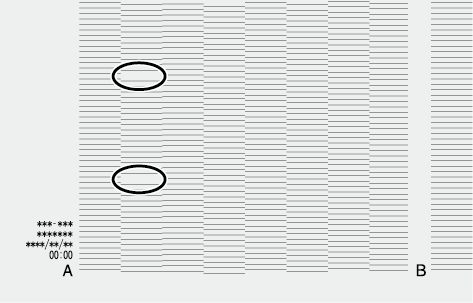
Check for the print head with dot drop-out or dot displacement by viewing the results of the printing test.
In the case of the figure below, the space from [A] to [B] is head A.
 MEMO
MEMOIf the printing-test results are difficult to interpret
Check the results in a bright location, changing your line of vision. They are visible using the reflection of the light.
-
Tap
 on the home screen.
- Tap Cleaning.
-
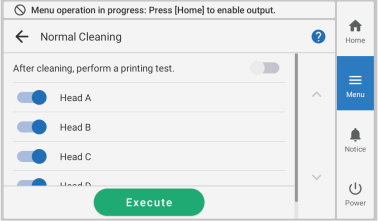
Tap Normal Cleaning.
The screen shown below appears.
-
Set the print heads to clean to
 and the print heads to not clean to
  .
.
- Tap Execute.Cleaning will start. The details of the operation in progress and the (approximate) remaining time of that work are displayed in the status bar at the top of the screen.
When the work is finished, the status bar returns to its original display.
-
Tap
 .
.
- Tap Printing Test.
-
Select Nozzle Drop-out Test and tap Execute.
Perform a printing test again to check whether the dot drop-out and dot displacement have been corrected.MEMO
Depending on the color of the object to be printed on, it may be difficult to check the white ink test pattern.
Tap
on the home screen, select in that order, and then tap Execute to make the base of the white ink black, making it easier to check the white ink.Nozzle Drop-out Test (Base: Black) is not displayed if the machine is not equipped with white ink.
-
If dot drop-out or dot displacement is present, perform normal cleaning again.
If the printer has been used for a long period, dot drop-outs may not be fixed even after performing Normal Cleaning two or three times. In that situation, perform Medium Cleaning.
If there is no dot drop-out or dot displacement, proceed to the next step.
-
Tap
 to return to the home screen.