
Method for Eliminating Uneven Color Issues with Powerful Cleaning
IMPORTANT
The ink in the print heads is discharged to stabilize the output color, so a certain amount of ink is consumed.
MEMO
If the object to be printed on is set up before Powerful Cleaning is performed, After cleaning, perform a printing test. will be displayed on the Powerful Cleaning menu screen. When this setting is turned on, Printing Test will be performed after Powerful Cleaning even if Nozzle Drop-out Test is not performed.
Procedure
-
Tap
 on the home screen.
- Tap Cleaning.
-
Tap Powerful Cleaning.
The screen shown below appears.
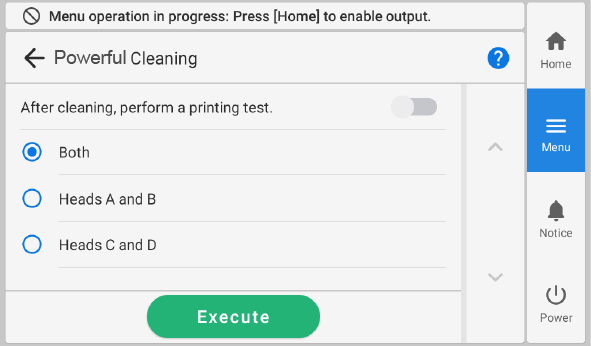
- Select Heads A and B.
-
Tap Execute.
Cleaning will start. The details of the operation in progress and the (approximate) remaining time of that work are displayed in the status bar at the top of the screen.
When the work is finished, the status bar returns to its original display.
-
If uneven output color issues with white ink are not resolved
even after performing Powerful Cleaning, perform Ink Renewal Inside Damper.
If the uneven color issues are resolved, proceed to the next step.
-
Tap
 to return to the home
screen.
to return to the home
screen.