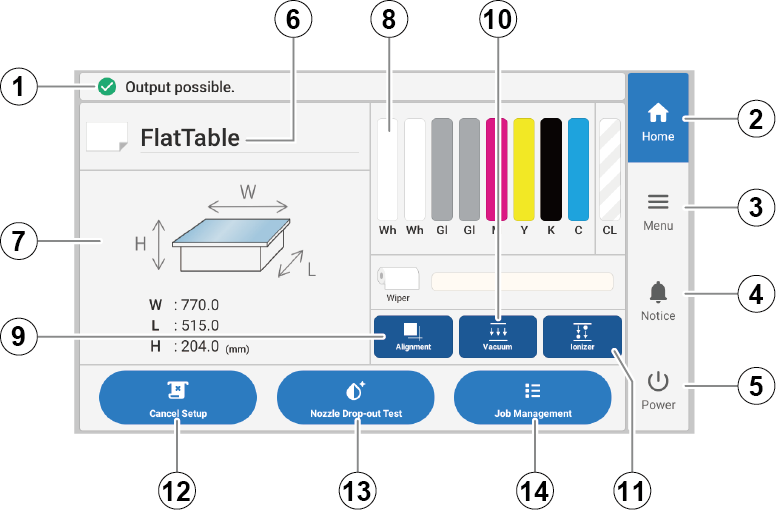
Displays the printer status and indicates the next operation.
Home
Displays the home screen.
Menu
Displays various setting menus.
Notifications
Displays important information. When there are notifications, their number is displayed next to the icon.
Sub power
Turn off the sub power. Tap the operation panel to turn the sub power back on.
Media name
Displays the selected media name. The media name is only displayed when the object is set up, and this is blank when the object has not been set up.
Printing area
Displays the set printing area size and the height of the print surface. This is displayed only when the object is set up. You can tap it to re-set the printing area.
Displays the amount of ink remaining in each cartridge. If it is time to replace a color, is displayed next to the corresponding ink cartridge. Tap this icon to display the detailed information for the ink.
Alignment
When selected, the pins for positioning the object to be printed on emerge from the flat table.

 is displayed next to the corresponding ink cartridge. Tap this icon to display the detailed information for the ink.