
Setting tab
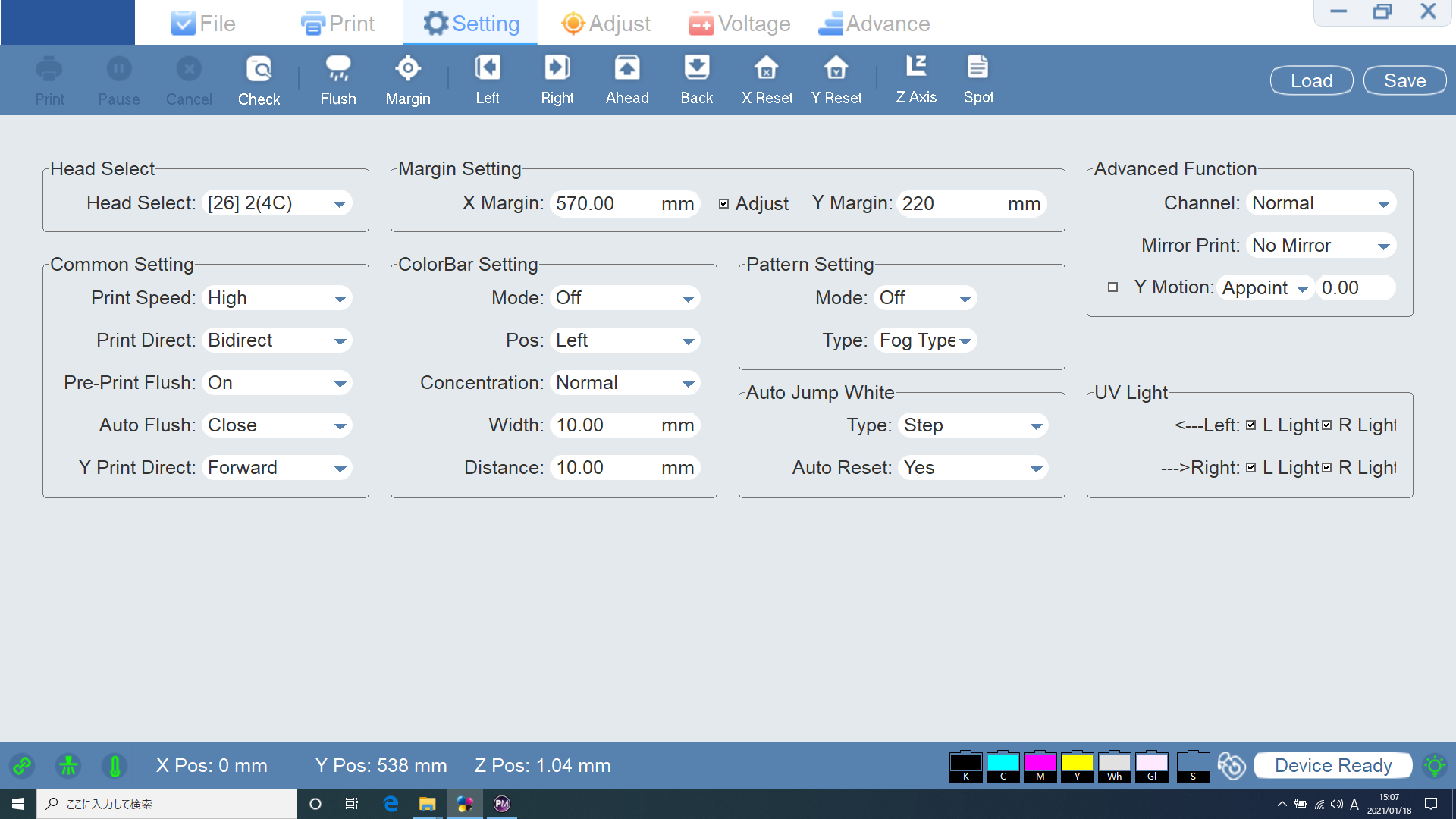
| View | Description | ||
|---|---|---|---|
| Head Select | This sets the printing mode. | ||
| Head Select | [26] 2(4C) | Select this to print data in CMYK only. | |
| [26] 4C+ WV | Select this to print data including Wh or Gl. | ||
| Common Setting | Print Speed |
This sets the printing speed. Selection choices: Low/Middle/High |
|
| Print Direct |
This sets the printing direction: unidirectional printing (left to right, right to left) or bidirectional printing. Selection choices: Left/Right/Bidirect |
||
| Pre-Print Flush |
This selects whether or not to perform discharge of ink each time before printing in order to prevent clogging of the print head nozzles. Selection choices: Off/On |
||
| Auto Flush | This machine does not use this function. | ||
| Y Print Direct | This sets the print feed direction on the Y axis. | ||
| Forward | This prints from the near side to far side. | ||
| Reverse | This prints from the far side to near side. | ||
| Margin Setting | This sets the printing-start position. | ||
| X Margin | Enter the printing-start position on the X axis. | ||
| Y Margin | Enter the printing-start position on the Y axis. | ||
| ColorBar Setting |
This sets whether to print the color bar and status together with printing data. Printing the color bar and status stabilizes ink discharge and maintains printing quality.*1
|
||
| Mode | Off | The color bar and status are not printed. | |
| Wetting |
This prints the color bar. This injects ink from nozzles that are not used for printing, preventing the nozzles from clogging. |
||
| Status |
This prints a color bar using smaller amounts of ink than used when printing with Wetting. It is possible to check for nozzle drop-out that cannot be detected with the color bar printed by Wetting. |
||
| Wetting and stat | This prints the color bar and status. | ||
| Pos |
This sets the printing positions of the color bar and status. Selection choices: Left/Right/Both |
||
| Concentration |
This sets the print density of the color bar. A higher density maintains quality more effectively but consumes more ink. |
||
| Weak | This prints lightly. | ||
| Normal | This prints with moderate density. | ||
| Strong | This prints using deep colors. | ||
| Width | This specifies the printing width of the color bar. | ||
| Distance | This specifies the margins between printing data, color bar, and status. | ||
| Pattern Setting | When using, select Depth for Mode, and select Fog Type for Type. | ||
| Auto Jump White | This sets whether the print-head carriage skips margins with no data when it moves. | ||
| Type | Off | The print-head carriage does not skip margins. | |
| Step |
The print-head carriage skips margins. With this setting, the print-head carriage skips at higher speed than Together. |
||
| Together | The print-head carriage skips margins. | ||
| Auto Reset | This machine does not use this function. | ||
| Advance Function | This sets other functions. | ||
| Channel | This sets the inks to use in printing. | ||
| Normal | This prints with CMYK and white inks. | ||
| Only Color | This prints with CMYK inks only. | ||
| Only White | This prints with white ink only. | ||
| Mirror Print | This sets whether to invert printing data during printing. | ||
| No Mirror | This prints without inverting data. | ||
| Horz Mirror | This inverts data horizontally for printing. | ||
| Y Motion | This sets the position on the Y axis to which the print-head carriage returns after printing is complete. | ||
| Appoint |
Enter a value. The Y axis moves to the specified position after printing is complete. |
||
| Origin |
The print-head carriage moves to the home position (Y-axis origin) after it completes printing. |
||
| Current |
The print-head carriage moves onto the maintenance station through the Y-axis position when it completes printing. |
||
| Terminus |
The print-head carriage moves to the end position on the Y axis after it completes printing. |
||
| UV Light |
This sets whether to turn ON or OFF the UV-LED device in each printing direction. Unchecking the box turns the UV-LED device OFF during printing. |
||
The color bar and status are printed on the left or right side or both sides of printing data.
To print the color bar and status together with printing data, it is necessary to reduce the width of the printing data or increase the width of the objects to be printed on.