
Cleaning the Area Around the Print Heads
| Required item | |
|---|---|
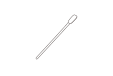
|
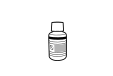 |
| Cleaning sticks (4) | Cleaning liquid bottle for maintenance |
Locations to clean with this work
- Print head caps (A)
- Nozzle guards (B)
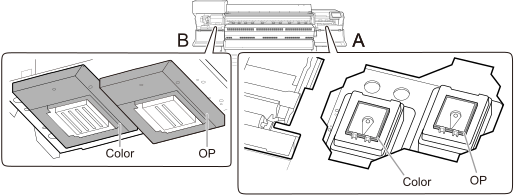
* Color: Locations to clean in the color ink section
* OP: Locations to clean in the optimizer ink section
IMPORTANT
- Be sure to use different cleaning sticks in the color ink section and the optimizer ink section. Using the same cleaning stick may lead to the optimizer ink and color ink mixing, resulting in ink hardening and discharge issues.
- Do not touch the tips of the cleaning sticks with your hands. Skin oil affixing to the print head caps may lead to malfunctions.
- Use a clean pair of tweezers to remove clumps of ink.
- Do not use cleaning liquid other than the included cleaning liquid.
- Do not dip the cleaning stick in the cleaning liquid bottle again during cleaning. To add cleaning liquid, use a new cleaning stick.
Procedure
- Remove any media.
-
Tap
 on the operation panel.
- Tap .
- Tap Execute.
-
Follow the instructions on the operation panel to carry out the work.
After finishing the instructed work, tap
 to display the next step. In this manner, perform each step of the work in order. If you want to check the previous step or perform it again, tap
  .
.When you finish the last step, tap Finish All. When print-head cleaning finishes after this work, the cleaning is finished. Dispose of used cleaning sticks.
-
Tap
 .
The home screen appears.
.
The home screen appears.