
Operating the Machine with a Fixed IP Address
This section explains how to assign a fixed (unchanging) IP address to the machine. Using a fixed IP address clearly identifies the machine's role within the network and makes operation and management easier.
IMPORTANT In an environment where the printer is connected to multiple network devices and the Internet, inappropriate settings will have a large effect on the entire network. For detailed information about the settings, consult your network administrator.
Procedure
- Tap
 .
. - Tap .
- Tap Obtain IP Address Automatically to set it to Disable.
- Tap
 to the right of IP Address.The numeric value input screen appears.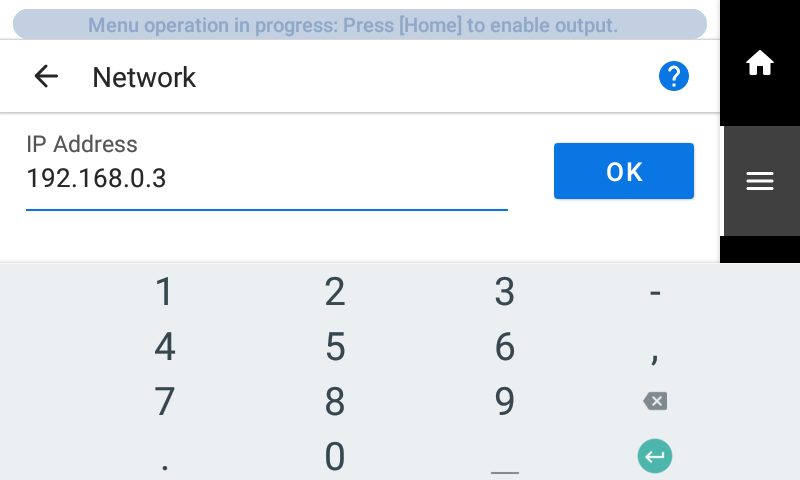
- Enter the IP address.For the IP address, contact your network administrator.
- Tap OK.
- Tap to the right of Subnet Mask.The numeric value input screen appears.
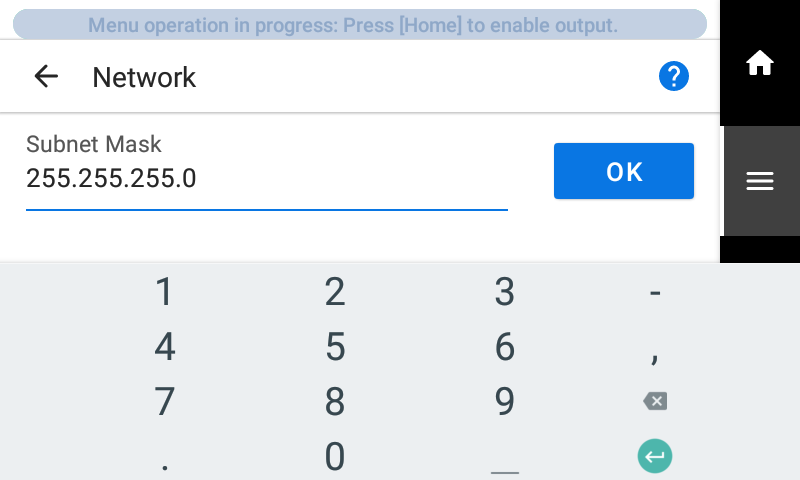
- Enter the subnet mask.
- Tap OK.
- Tap to the right of Default Gateway.The numeric value input screen appears.
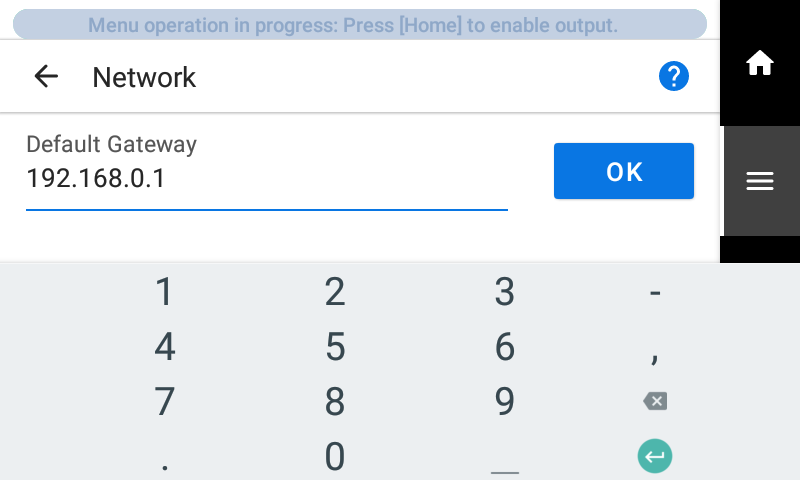
- Enter the default gateway.
- Tap OK.
- Tap Save.
-
Tap
 .
The home screen appears.
.
The home screen appears.