Specifying the Printing Position in the Rotation Direction
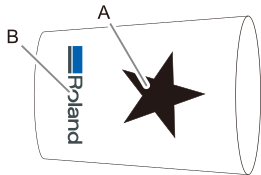
With a cylindrical printer, specify the printing position in the circumference direction. Configure this setting when, for example, you are performing additional printing (B) on an object that already has a reference (A) for printing or the like.
Procedure
Printer Settings
Set up the object to be printed on.
In addition to the Media Name, Workpiece Type, and Workpiece Information, set the Printing Area and Reference Point. For details on this work, see the user's manual of the printer.
From Dot Shape under Workpiece Information Settings, select the name of the acquired workpiece.
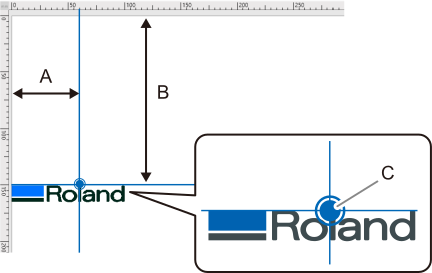
At this time, the Printing Reference Point set on the printer appears as a horizontal line in the preview window.
Click Printer Controls.
Set the following with Cylindrical Control.
Starting Offset for Printing: Specify the offset amount (A) to match with the Printing Reference Point specified on the printer. This value is displayed as a vertical line in the preview window.
The Printing Reference Height (B) indicates the position of the Printing Reference Point.
Support Line Color: Specify the colors of the vertical and horizontal lines and of the double circle.
The intersection of the two lines Starting Offset for Printing and Printing Reference Height is displayed as a double circle (C).
Click OK.
The changes will be applied, and you will be returned to the main window.