
Home Screen
VersaWorks basically consists of a home screen and a main screen. When VersaWorks is started, the main screen appears*1. Although most operations are performed on the main screen, the home screen allows users to register printers with Add New Printer and check the status of the selected printer or the RIP/printing status. Printer settings can also be registered by clicking  (including Printer Color Match and Media Explorer).
To switch to the main screen, click  Job.
Job.
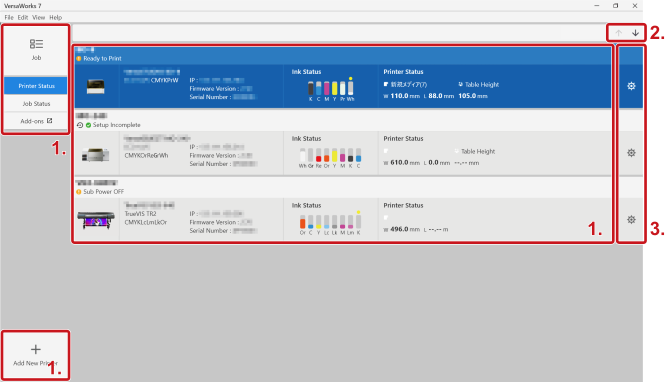
| 1. |
Click the following items to switch the displayed window.
|
| 2. |
The following settings are available. If multiple printers have been registered, select one before clicking this.
|
| 3. | Click to configure the following settings.
|
 .
. .
.

 : Change the
order of the selected printer in the registered printer list
when multiple printers have been registered. If you change this
order, the order of printers at the top of the main screen also
changes.
: Change the
order of the selected printer in the registered printer list
when multiple printers have been registered. If you change this
order, the order of printers at the top of the main screen also
changes.*2 Available with purchase of additional functions.