
Switching the Layout Area Preview Image on the Main Screen
This section explains how to switch the preview image displayed in the layout area.
| Einzelansicht (Nullpunkt-Ansicht) | Mehrfachansicht | |
|---|---|---|
| Icon |  |
 |
| Layout area |
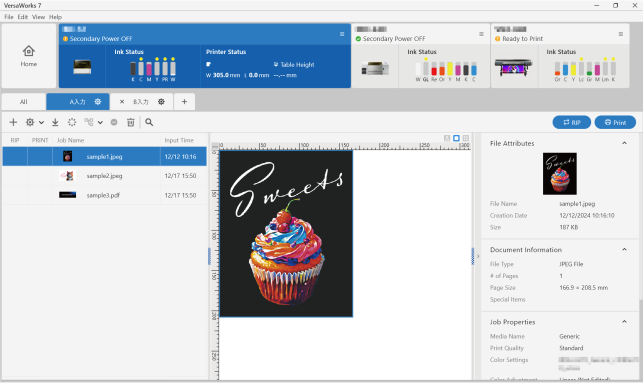 |
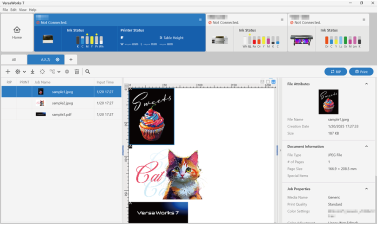 |
Vorgehensweise
- Select the job from the job list.
-
Click a preview icon at the top of the layout area.
- : Einzelansicht (Nullpunkt-Ansicht)
The preview displays only the selected job.
- : Mehrfachansicht
With the queue folder selected: The preview displays the jobs in the queue folder.
With Alle selected: The preview displays all the jobs in all the queue folders of the selected printer.
Anmerkung To display the input folder name for each job, configure the following settings.- Display Voreinstellungen (Windows) or Voreinstellungen (Mac).
- Windows: Click on the menu bar.
- Mac: Click in the menu bar.
- Select the Warteschl.-Symbol in Layout-F. anz. checkbox under .
- Display Voreinstellungen (Windows) or Voreinstellungen (Mac).