
Step 3: Adjusting Cutting
The media thickness varies due to lamination and similar processing, so adjust cutting with the media in the same state as when you perform cutting with crop marks.
Procedure
- Tap
 Blade Adjustment on the home screen.
 - Tap Change next to Output Start Location.
- Tap
 .The cutting carriage moves to the current base point.
 - Tap
 ,
,  , , or
  to move the cutting carriage to the location where you want to carry out the cutting test.You can freely set the location for the cutting test.
 - Tap Set Base Point Here.
- Tap Execute next to Cutting Test.The test pattern is cut.
- Peel off the cut shapes and change the according to the cutting quality.Check that the two shapes are peeled off separately, a blade trace (red line) remains on the backing paper, and the backing paper is not cut.
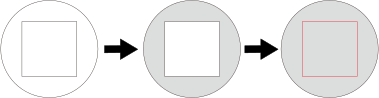
-
Two shapes are peeled off separately
You do not need to perform the setting because the blade force is appropriate. Two shapes are peeled off together
Increase the blade force.
Backing paper is also cut
Decrease the blade force.
-
- Tap Save.The changed settings are saved.
- Tap Execute next to Cutting Test.The test pattern is cut.
- Check whether the correction was successful.