Loading the Object to Be Printed on by Pressing It Against the Positioning Pins
Procedure
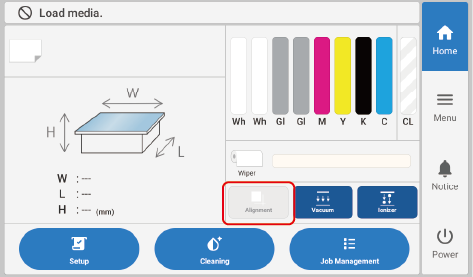
Tap on the home screen.
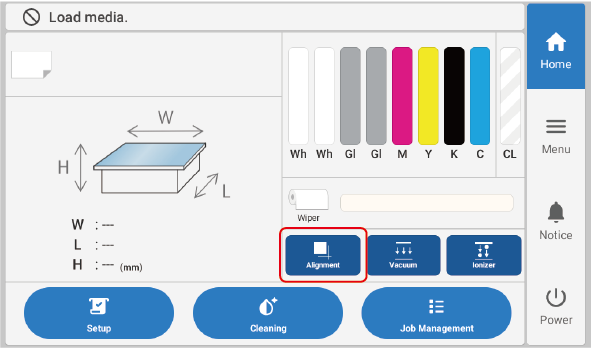
When this is selected, the button is displayed as enabled, as shown in the figure below.
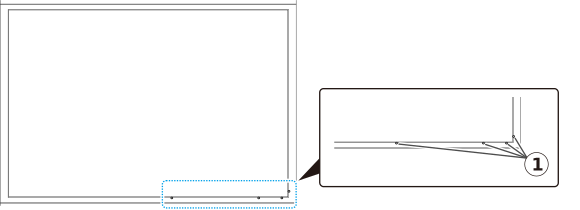
The positioning pins emerge from the flat table.
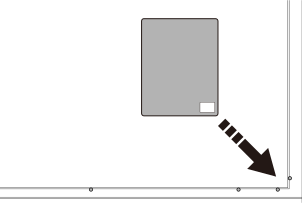
Load the object to be printed on by pressing it against the positioning pins.
IMPORTANTIf the height of the object to be printed on is 4.0 mm (0.15 in.) or less, be sure to switch off Alignment and lower the positioning pins before performing the following work. If the object to be printed on presses firmly against the positioning pins, they may not lower even if Alignment is switched off. In this case, lower the positioning pins by pressing them with your fingers.
When setting the height of the object to be printed on
If the positioning pins are higher than the object to be printed on, the height is set with the positioning pins, not the object to be printed on, used as the reference.
Before printing
The print heads may come into contact with the positioning pins and be damaged.

 on the home screen.
 IMPORTANT If the height of the object to be printed on is 4.0 mm (0.15 in.) or less, be sure to switch off Alignment and lower the positioning pins before performing the following work. If the object to be printed on presses firmly against the positioning pins, they may not lower even if Alignment is switched off. In this case, lower the positioning pins by pressing them with your fingers.