
Adjusting the Printing Position
If the printing position and the cutting position are offset as shown in the following figure, you can correct the issue by adjusting either the printing position or the cutting position. This example shows the procedure for adjusting the printing position.
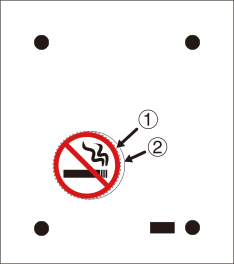
- : Intended cutting line
- : Actual cutting line
- Start Designer, and then open the target Print & Cut data.
- Select the cutting line, and then click
 on the function toolbar.The crop mark setting window appears.
 - Align the position with respect to a line or point () that is close to the origin ().
Adjust the and values to eliminate the misalignment, and then click .
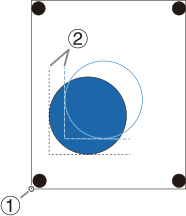
When the cutting position deviates to the left or right of the printing position
Change the @@ value. If the cutting position is offset to the right, increase the value; if it is offset to the left, decrease the value. In the case shown in the above figure, increase .
When the cutting position deviates above or below the printing position
Change the value. If the cutting position is offset above, increase the value; if it is offset below, decrease the value. In the case shown in the above figure, increase .
If the printing and cutting positions are misaligned at a location distant from the origin () as shown in the following figure even after adjusting the positions with and , expanded, contracted, or distorted material may be causing the distance between the printed crop marks to deviate from the setting (, ). Proceed to Step 4.
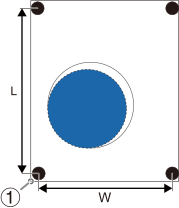
- Set and on the window, and correct the differences.
However, the values are merely guide lines. The optimal values must be found by changing the values and actually cutting the material several times.
IMPORTANT Before setting, check that and have been adjusted with respect to a line or point close to the origin (). If aligned with respect to a point far away, the adjustment result of Step 3 will deviate when and are set.- Cutting lines deviate outward from the printing position
This may be because the distance between the printed crop marks is longer than the setting. In this case, set and greater than the settings to adjust the positioning.
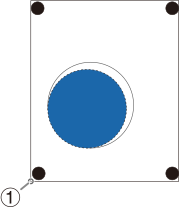
- Cutting lines deviate inward from the printing position
This may be because the distance between the printed crop marks is shorter than the setting. In this case, set and smaller than the settings to adjust the positioning.
- : Origin point
IMPORTANT The values entered in the window are effective only when is selected in the window.
MEMOIf the sensor fails to read the crop marks, the screen shown below appears.
If the following screen appears, refer to Crop Marks Are Not Detected to resolve the error.

If that does not resolve the issue, switch to Tool Mode, and then perform aligning. ツールモードでプリント&カットする
- Cutting lines deviate outward from the printing position