
Importing a File to Create a Design
This section introduces how to upload an image or illustration from your computer to create a design or a template.
Procedure
-
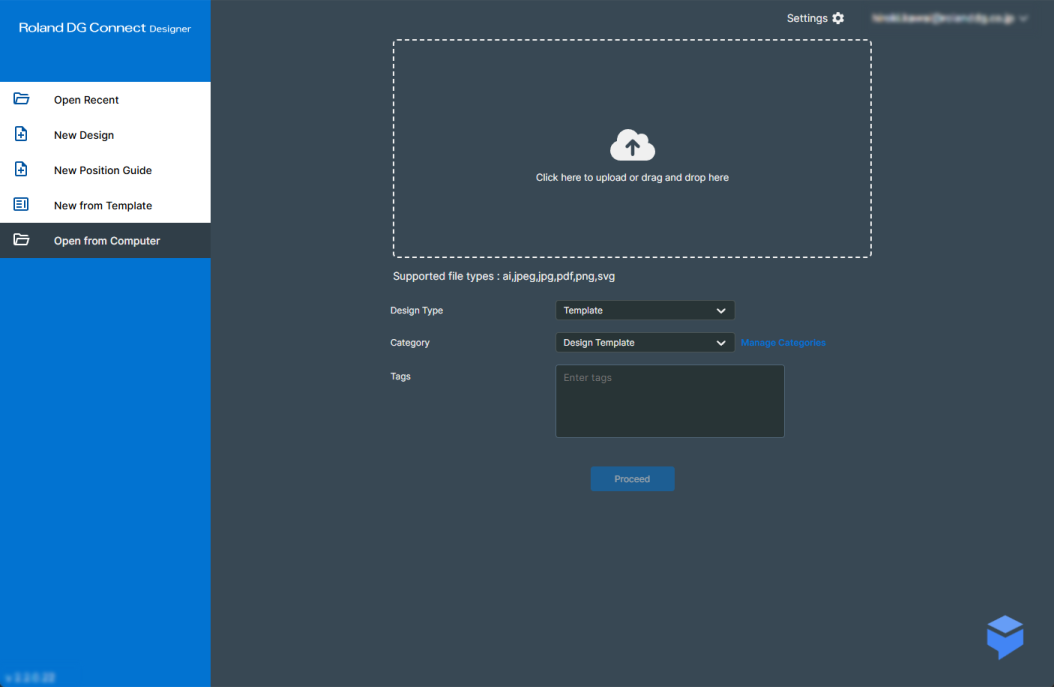
From the dashboard, click Open from Computer.
-
Drag the file to be uploaded inside the dotted line box, and then select the design type and category to save.
The file will be uploaded to the server.
Files are saved separately by category. To add a category, do so from Manage Categories.
MEMOIt is a good idea to enter keywords that you can use to identify the design you have created in Tags. This will help you manage the design more efficiently. These will function as search keywords for when you are searching for designs from the dashboard.
-
Click Proceed.
The design window is displayed with the uploaded file as the canvas background.
-
Edit the design.
Add objects and edit the design.
MEMO If a file which includes vector data was uploaded, it is handled as clipart placed in the background. It can be edited from Edit in Background.