
Changing Object Colors
This section introduces how to select an object to be edited (such as text or a shape) and change the color of its fill or line. In addition to using the default colors and the VersaWorks spot colors, you can also register additional new colors.
Procedure
-
Click an object that has been added to a canvas to select it.
The operation panel for the selected object is displayed on the left side of the window.
-
Change the color of the object.
- Setting the fill
- To fill with a color, click Fill Color.
- To specify a pattern, click Fill Pattern.
- Setting the line
- To change the color, click Stroke Color.
If you are using a paid module, you can change the offset by selecting the drawing position of the line from Stroke Position.
- To specify a pattern, click Stroke Pattern.
- To change the color, click Stroke Color.
To change the color to a color other than the registered color, you can register an additional new color by following the procedure below.
-
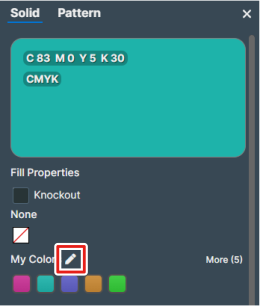
Click Manage My Colors under My Colors.
-
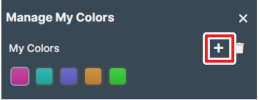
Click Add Color.
- Setting the fill