
Correcting the Reading Sensor (Multi Sensor Adjustment)
Procedure
- Set up the media.
- Click
 .
. - Click .
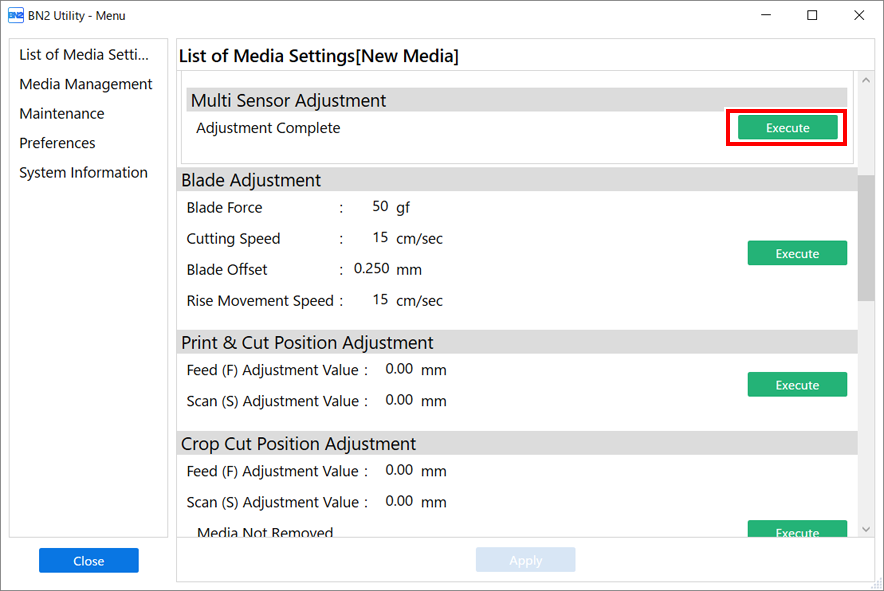
- Click OK.Adjust the sensor. The adjustment results appear.
- Adjustment has finished.:
Click OK to return to the original window.
- Adjustment failed.:
Check the following items.
Cause Countermeasures The lighting in the room where the printer is installed or vicinity of the printer is too bright.
Adjust the lighting in the room.
Correction failed for some reason. Redo the correction. With the media being used, it is not possible to recognize the printing test for automatic correction. Change the media type. There is ink on the multi sensor because, for example, the media strikes it immediately after printing. Contact your authorized dealer.
- Adjustment has finished.: