
Replacing the Wiper
When it is almost time to replace the wiper, the message There are not many wipers remaining. Immediately stock up on wipers. Leaving the printer in a state in which it does not have a wiper will lead to head damage. appears. If you do not have a wiper in stock, order a replacement immediately. We recommend that you always keep a replacement wiper on hand. Depending on where the wiper must be shipped to, it may take time for an ordered wiper to reach you.
For information about purchasing wipers, contact your authorized dealer or visit our website (https://www.rolanddg.co.jp/).
Be sure to perform operations as specified by the instructions, and never touch any area not specified in the instructions.
Sudden movement of the machine may cause injury.
- To prevent the print heads from drying out, finish this procedure in 10 minutes or less. After 10 minutes, the alarm will sound, so pause the procedure and perform the following operations.
- Close all the covers.
- Tap Finish All to finish the work.
- Restart the procedure from the beginning.
| Required item |
|---|
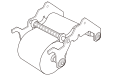
|
| Unused, new wiper |
- When the message The time for wiper replacement has arrived. appears, tap OK.
- Remove any media.
-
Tap
 to display the messages.
-
Tap The time for wiper replacement has arrived..
The Wiper Replacement screen appears.
-
Tap Execute.
If the message Eliminate static electricity. appears, touch the indicated location, and then tap Next.
-
Follow the instructions on the operation panel to carry out the work.
When you finish the work, the screen changes.