Adjusting the Output-start Location
Setting the Base Point
The base point () indicates the right edge of the output area (). (: Media feed direction, : print-head carriage movement direction) You can print without setting the base point, but setting the output area enables you to use media without being wasteful and also to print on the targeted location.
Set the base point for each individual page. When the printing of one page finishes, the base point returns to its default value.
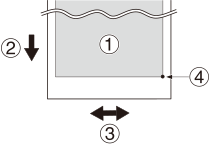
IMPORTANT When the media is set up, the dryer temperature rises to the standby temperature (Setting the Temperature during Standby). For some media, parts exposed to the dryer in the process of setting the base point may suffer damage such as deformation or deterioration, which may result in poor printing quality, so leave these parts in the margin and do not print on them. In the unlikely event that you use that area, check that the media is not wrinkled or deformed before printing, and that the print quality is not degraded after printing.
MEMO
-
Note that the left and right positions are not restored to their defaults for test patterns.
Procedure
-
Tap
 .
.
-
Tap
 Move.
The [Move] screen appears.
Move.
The [Move] screen appears. -
Tap
 ,
,  ,
,  , or
, or  to move the center of the blade to the position to set as the base point.
Tap or to move the media. Tap or to move the cutting carriage.
to move the center of the blade to the position to set as the base point.
Tap or to move the media. Tap or to move the cutting carriage.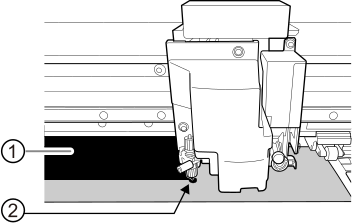
- : Output area
- : Base point (right edge of the output area)
-
Once the position has been decided, tap Set Base Point Here to confirm it.
The base point position is updated, and you are returned to the home screen.MEMO When the base point position is updated, the following icon is displayed on the home screen.