D-EA2 ink Switching Method
IMPORTANT
Please note the following points when switching to D-EA2 ink.
- The image quality and color tone will change compared to D-EA ink.
- Ink remains will no longer be displayed in VersaWorks 7 and on the printer.
- Once you switch to D-EA2 ink, you cannot switch back to D-EA ink.
- VersaWorks 6 does not support D-EA2 ink. If you are using VersaWorks 6, please install VersaWorks 7.
- Jobs saved in VersaWorks (VW job files, setting files, Native File, etc.) cannot be used after switching inks.
- Please refer to the various manuals for details on the work.
MEMO
VersaWorks 7 can be installed from the following website.
Preliminary preparations
-
Prepare D-EA2 ink (D-EA2-CY, D-EA2-MG, D-EA2-YE, D-EA2-BK)
- ER-641: 1 each
- ER-642: 2 each
-
Maintenance of the machine
-
If the following message appears, perform manual cleaning.
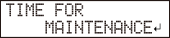
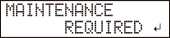
-
If the following message appears indicating that parts need to be replaced, please replace the parts.
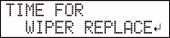
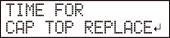
-
If the following message appears, perform manual cleaning.
Procedure
-
Update the printer firmware.
-
Update from Roland DG Connect Hub
- Start Roland DG Connect Hub.
- Select ER-641/642 on the main screen.
-
Click
Firmware Update
.
Follow the instructions to update the firmware.
-
Update from the Download Center
-
Download the firmware updater from the following site.
Please confirm the contents and download the file according to the instructions.
- Double-click the updater.
- Follow the instructions on the screen to update the firmware.
-
Download the firmware updater from the following site.
-
Update from Roland DG Connect Hub
-
Perform a Printing Test.
If there are any dot drop-out, perform Normal, Medium, and Powerful Cleaning to ensure that the test pattern is free of dot drop-out.
-
Perform ink switching.
CAUTION
When the panel displays a message to empty the waste bottle, be sure to empty the waste bottle.
If the waste bottle is not emptied, there is a risk of waste ink overflowing.
IMPORTANT Shake the new cartridge to mix the ink before installing it. Check the color of the slot where you are inserting the cartridge and be careful not to insert the wrong color cartridge. -
Once the ink switching is complete, perform a nozzle check test.
If there are any dot drop-out, perform Normal, Medium, and Powerful Cleaning to ensure that the test pattern is free of dot drop-out.
-
Perform Media Gap Adjustment.
Read the media gap correction value from the printed test pattern. The number of corrections differs between ER-641 and ER-642. For details, refer to the user's manual.
-
If you are already using VersaWorks 7, perform the following.
-
Delete the registered ER-641/642
- Start VersaWorks 7.
-
Click
 Home
.
Home
.
-
Click on
 the right side of the printer you want to delete, then click
Delete
.
the right side of the printer you want to delete, then click
Delete
.
-
Update to the latest version
- Click on the menu.
- If an update is available, click Install Updates .
-
Delete the registered ER-641/642
- If you do not have VersaWorks 7, install VersaWorks 7.
-
Register the ER-641/642 in VersaWorks 7.
-
Click
Home
.
-
Click
-
Turn off the ink level warning.
Click on the menu bar, and uncheck Show warning about ink shortage on print command located under Print Options in RIP and Print .This will prevent low ink warnings from appearing when printing.
R1-250911